Appearance and Accessibility
Change themes, colors and interface size, or hide personal details while sharing your screen.
Overview
Open "Account" > "Accessibility". Appearance choices apply as you make them; there is no save button.
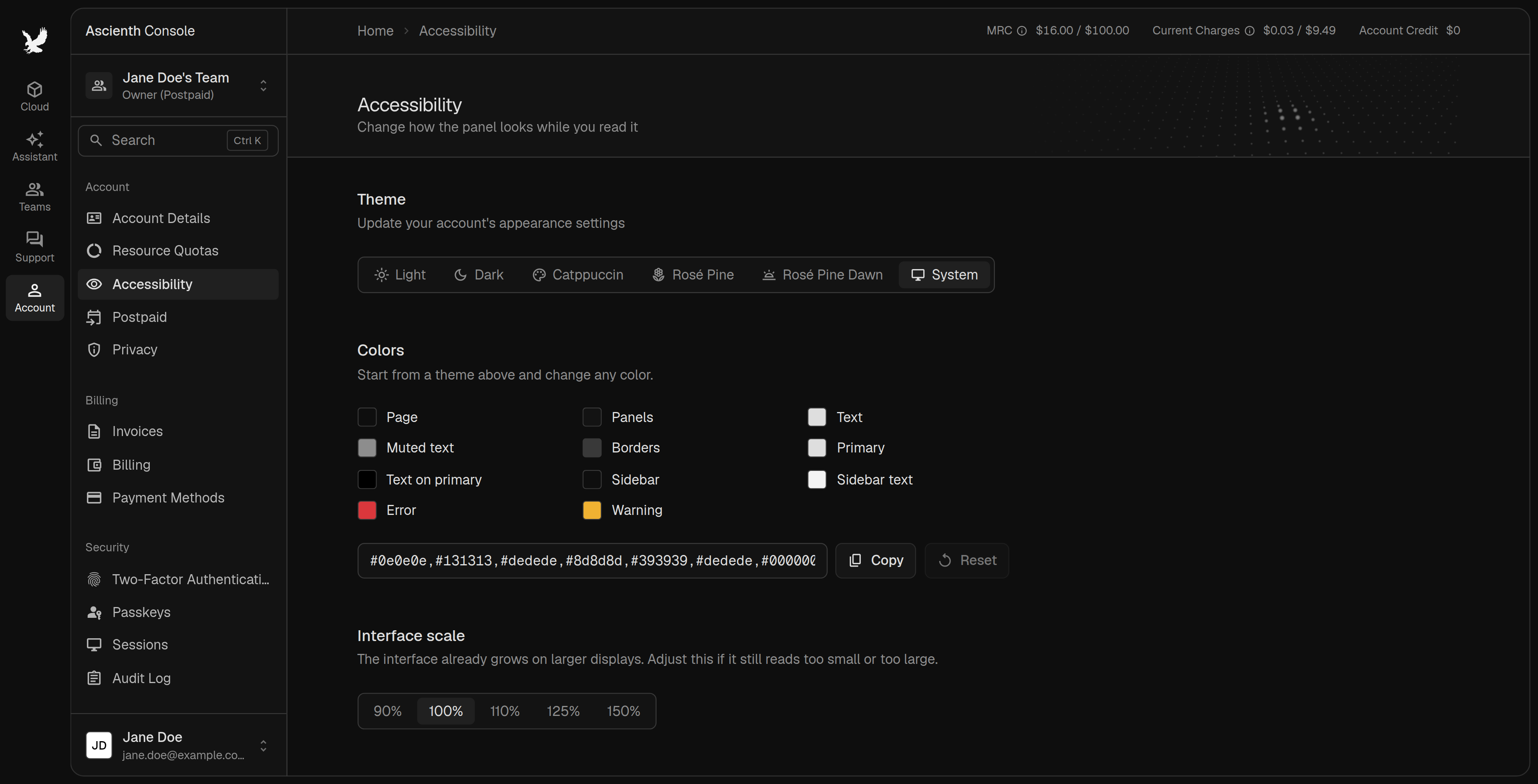
Theme and colors
Choose a theme, or choose System to follow your device. You can change individual colors under "Colors". Use Reset to restore the theme colors, or Copy to copy your color settings.
Interface size
Choose an "Interface scale" between 90% and 150%. Use a larger value if text and controls are too small. These appearance settings are stored in the browser, so set them again on another browser or device.
Showcase mode
Turn on Blur personal details before sharing your screen. It blurs names, email addresses, IP addresses and hostnames, and hides billing totals in the top bar. Check what is visible before you share; avoid opening secrets or sensitive messages.
AI features
Turn off Use AI features to disable the AI assistant on your account. See AI Assistant for how it works.
Still stuck? Contact our team
View as Markdown