Payment Methods
Save a card or PayPal account, choose a default, and pay invoices.
Overview
Payment dialogs show the methods available for your account and purchase. Use them to pay invoices or add account credit. Prepaid purchases use account credit; postpaid usage is invoiced later.
| Method | What to expect |
|---|---|
| Card | Complete the secure card payment and any bank verification. Supported wallets may also be offered. |
| PayPal | Approve the payment at PayPal, or choose a saved PayPal account where offered. |
| Cryptocurrency | Follow the address, network, amount and deadline shown in checkout. Wait for confirmation. |
| Account credit | Use Apply credit on an eligible invoice. |
| Legacy methods | Some older accounts also see Tebex or NOWPayments. Use these only when offered in the payment dialog. |
Do not make a second payment while one is processing. Check the invoice status once the payment provider confirms.
Save a payment method
Open Payment Methods
Open "Account" > "Payment Methods" in the Billing group.
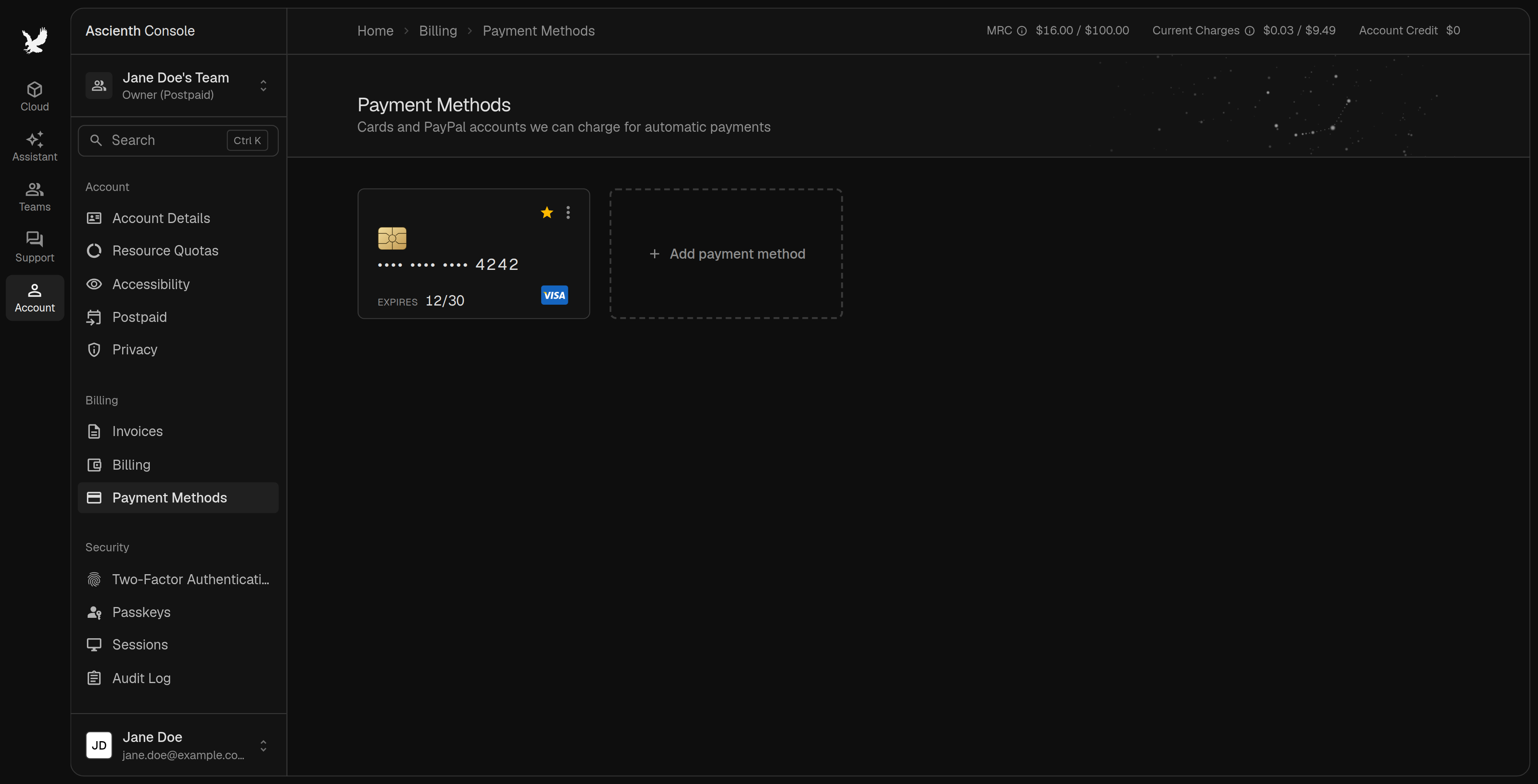
Add a card or PayPal account
Click
Add payment method, choose card or PayPal, and complete the fields or approval steps shown. Return to the console and wait for the method to appear.Choose the default
Open the method's row menu and choose
Make default. Account-wide automatic payments use this method.
Saving a method does not turn on automatic payments. Enable them on the "Billing" page, or on an individual prepaid service. See Automatic Payments.
Remove a method
Open its row menu and choose Remove. Read the confirmation, especially if the method pays for services automatically. Choose another default or update the affected services so future invoices can be paid.
Payment is missing or looks duplicated
Check Payment or Account Credit Not Showing before paying again. A top-up and the service bought from that credit are separate records. A cryptocurrency transfer also needs the exact asset, network and received amount shown in checkout.
Older payment methods
"Legacy Payment Methods" lists methods saved under the older client area. They are separate from the current "Payment Methods" page. Use the row menu to remove a legacy method and enter the confirmation text requested.
Legacy checkout options appear only for eligible older accounts. Tebex is not available for a combined payment of several invoices. If you do not see a method, choose another one from the payment dialog.
Still stuck? Contact our team
View as Markdown