Event and Usage Alerts
Receive email, Slack or Discord messages about team events and server usage.
Overview
Open "Teams" and choose "Event Alerts" or "Usage Alerts". Alerts belong to the selected team. The owner or a member with the required alert permissions can manage them.
| Alert | When it sends a message |
|---|---|
| Event | When one of the events you select happens in the team. |
| Usage | When a server stays above the threshold you choose for the time you set. |
Create an alert
Choose the alert type
Open the matching page and click
Create alert.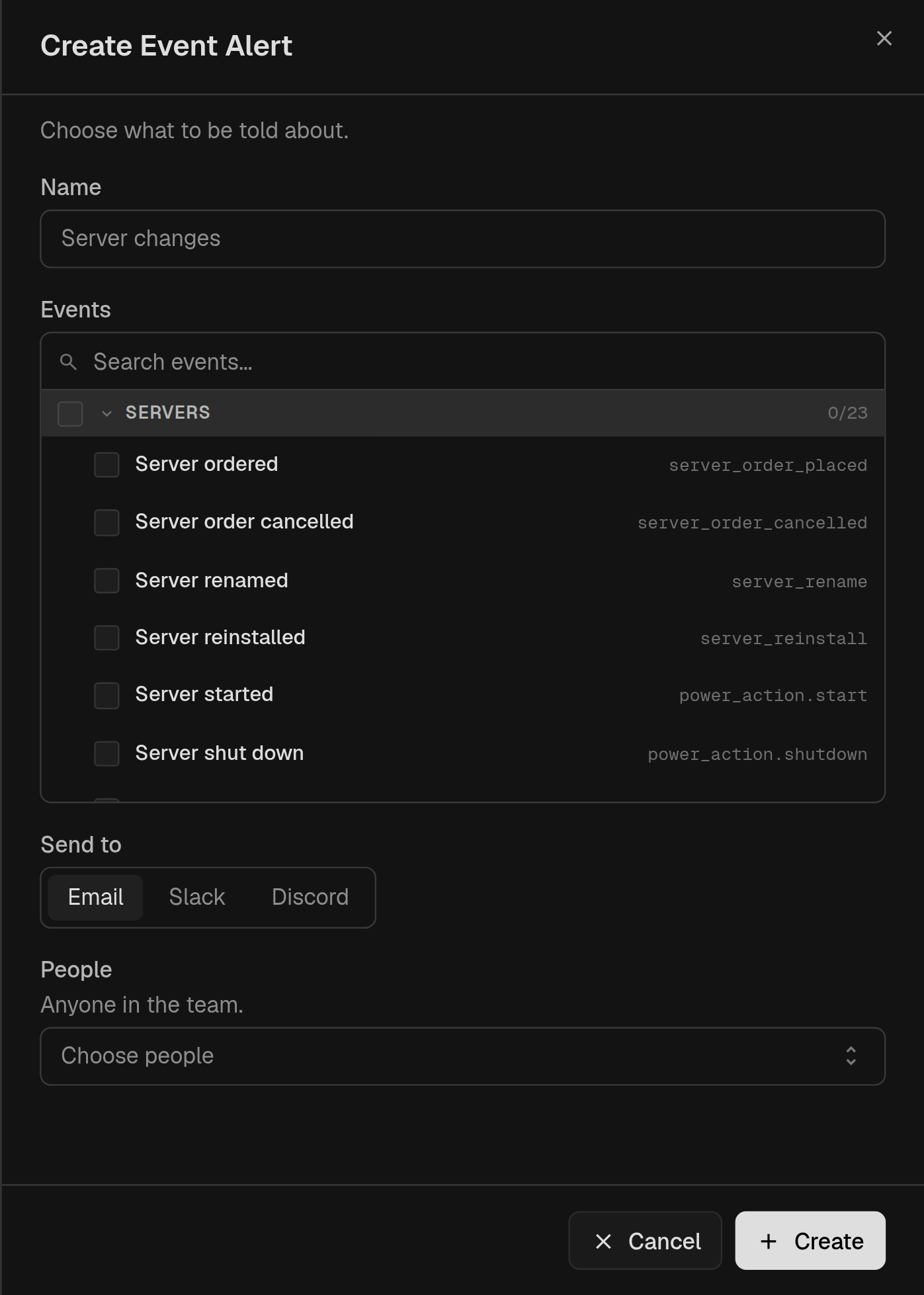
Choose where messages go
Name the alert. Choose email recipients from the available people, or choose Slack or Discord and enter its webhook URL. Treat webhook URLs as secrets.
Choose what to watch
For an event alert, tick the events. For a usage alert, choose the metric, threshold and duration, then choose all servers or specific servers.
Save
Check that the alert is active and save it. Its status and last sent time appear in the list.
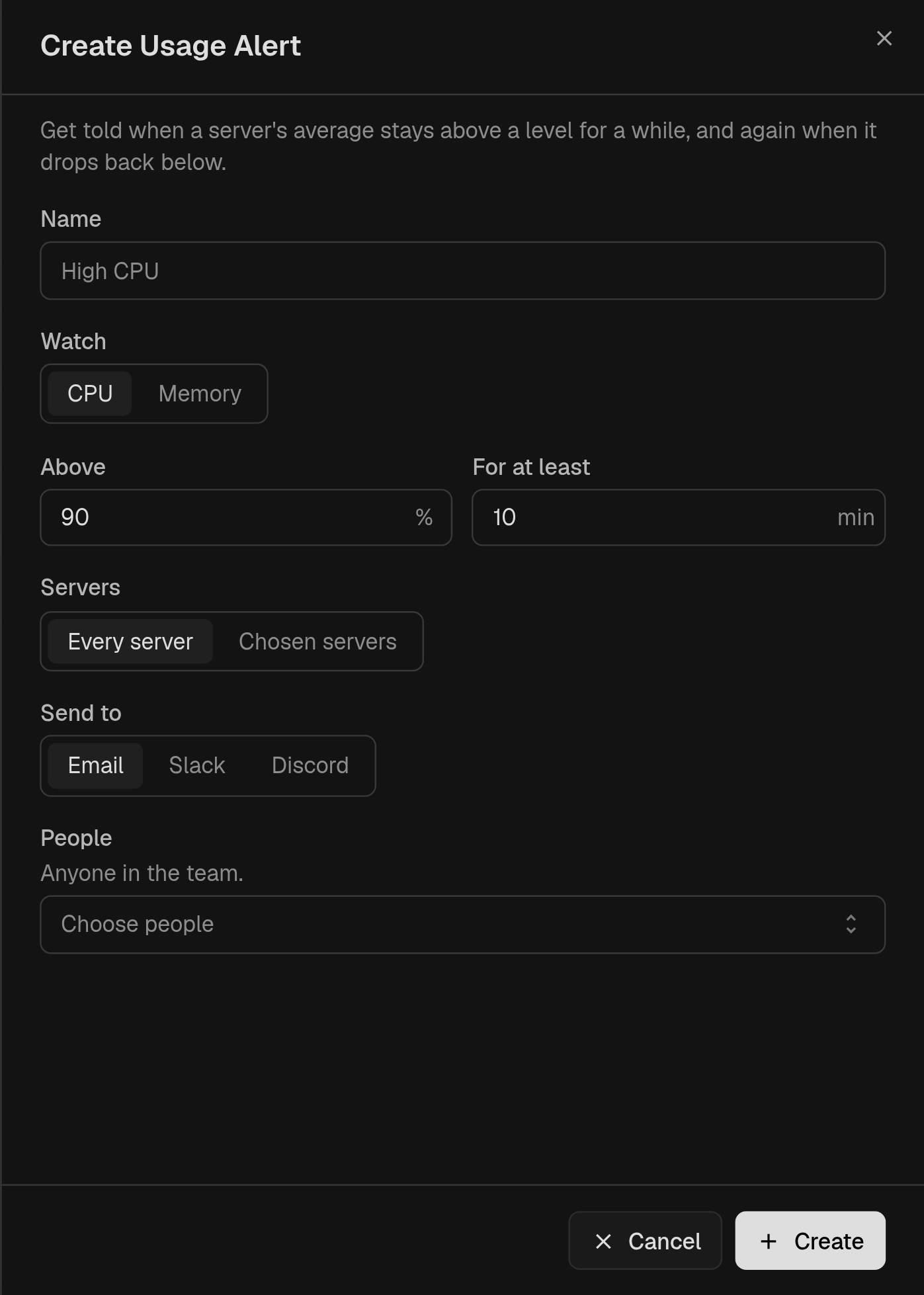
Usage thresholds range from 1% to 100%, with durations from 2 to 60 minutes. An alert tells you about activity; it does not increase a server's resources or stop it.
Pause, edit or delete
Use an alert's row menu to edit it, pause it, turn it on again or delete it. You can also select several alerts and use the bulk actions. Pausing keeps its settings while stopping messages.
Still stuck? Contact our team
View as Markdown