Upgrade or Change a Server Plan
Review a new plan, change location and understand the cost before confirming.
Overview
Open your server and choose "Upgrade" to see available plans and locations. Options depend on stock and the server's current disk size.
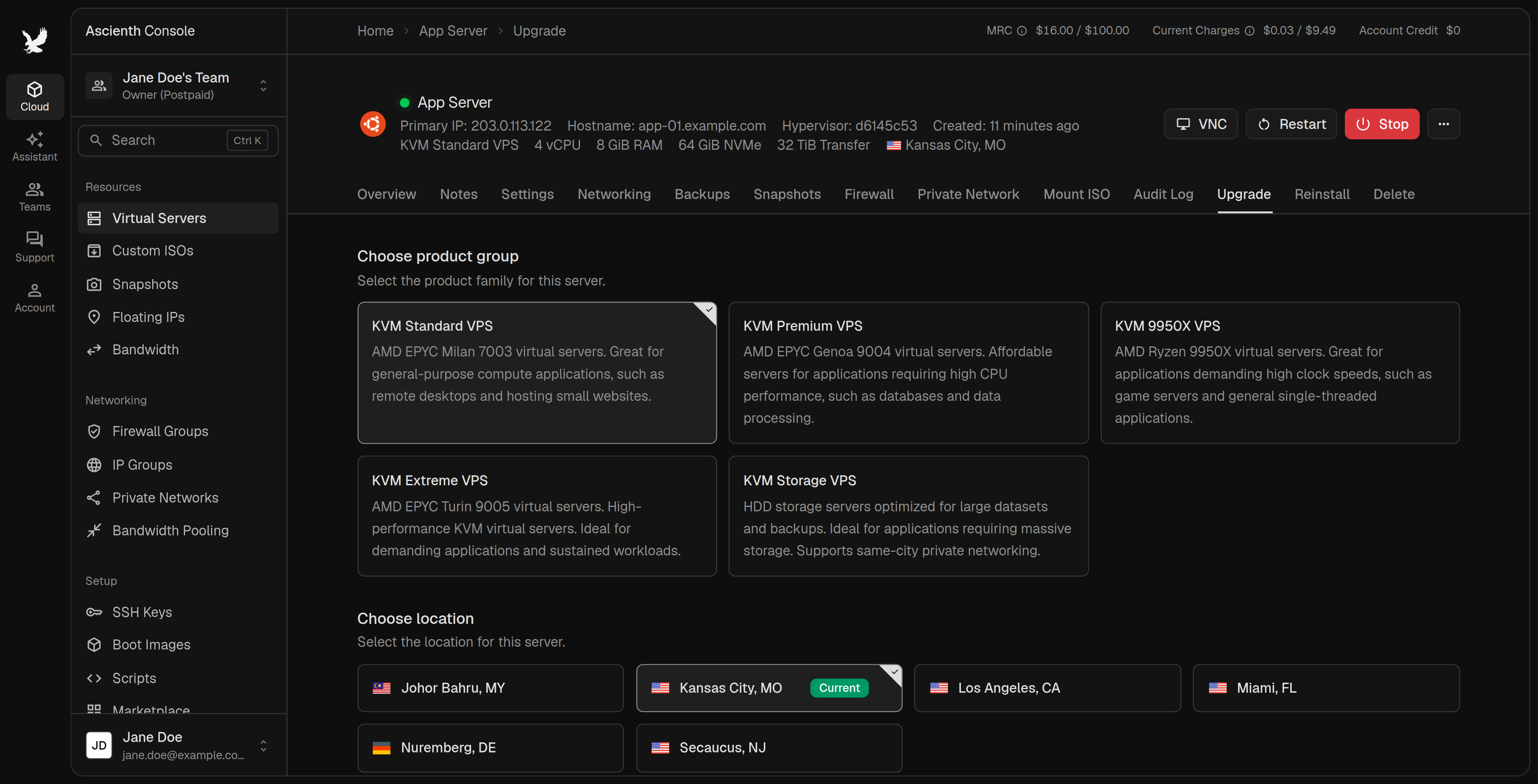
Review a change
Choose the location and plan
Select an available plan. If you change city, the server must be copied to the new location and its IP addresses change. Update your DNS and any address-based access rules afterwards.
Choose whether to grow the disk
Leave
Resize disk to the selected planoff to keep the current disk capacity. Turn it on to use the larger capacity included with the plan. A disk cannot be made smaller later.Review the quote
Click
Review upgrade. Check the plan, location, one-time fees and any payment due before you confirm.Confirm and wait
Back up your data and plan for downtime. Confirm the change and wait for it to finish before starting another operation.
How you pay
- Prepaid: the difference for the rest of the paid term, plus any fee, is paid from account credit. Add funds if your balance is too low. The new plan price applies to future renewals.
- Postpaid: hourly billing changes to the new rate when the change applies. Any one-time fee is added to the postpaid invoice. The purchase must fit your credit limit.
A location change normally adds a $5 fee. A change between product groups in the same location normally adds $2.50. Use the quote for the exact amount and currency. A plan change within the same product group and location has no change fee.
Promotional discounts do not automatically carry over to a new plan. Check the final price.
Out of stock
The Upgrade page shows available capacity. Support cannot override an unavailable plan by charging more or reserving a slot manually. Check another offered plan or location, or subscribe to stock notifications. A notification does not reserve capacity or promise a restock date.
Choose the right kind of move
- Keep the server and its data: use the Upgrade page to choose an available plan or location. Read the quote and IP-change notice. A same-location plan change normally keeps the IP; a city change replaces it.
- Start again with a clean server: order another server in the correct city. Cancel the old one only after saving anything you need. Do not cancel first if you need data copied over.
We offer the plan sizes listed in the console, rather than arbitrary RAM-only or storage-only increases. If the guest still shows the old disk capacity after a resize, see Disk Space After an Upgrade.
If a paid change fails
If the panel says Billing review required, do not submit the upgrade or location change again. Open a ticket with the reference shown and wait for confirmation that the earlier charge has been resolved. Adding more credit does not clear that review state by itself.
Downtime and disk limits
The server is offline while the change is processed. A local plan or product change can take around 30 minutes; a location change can take several hours.
You cannot choose a plan whose included disk is smaller than your server's current disk. To move to a smaller disk, order a new server and copy your data yourself, then cancel the original service.
Still stuck? Contact our team
View as Markdown