Password Reset
How to set a new root or Administrator password for your virtual server from the Ascienth console.
Overview
If you have lost your server's password, or want to change it, you can set a new one from the Ascienth console. On Linux this changes the root password. On Windows it changes the Administrator password.
Which password is this?
This changes the server's operating system password, not the password you use to sign in to the Ascienth console. Existing server passwords cannot be retrieved from this page. Use a reset when you no longer know yours; it does not reinstall or erase the server.
For our images, use root on Linux and Administrator on Windows. If SSH is configured for keys only, changing the root password does not necessarily enable password login over SSH. See Connect to Your Server.
Resetting the Password
Open the Reset Password settings
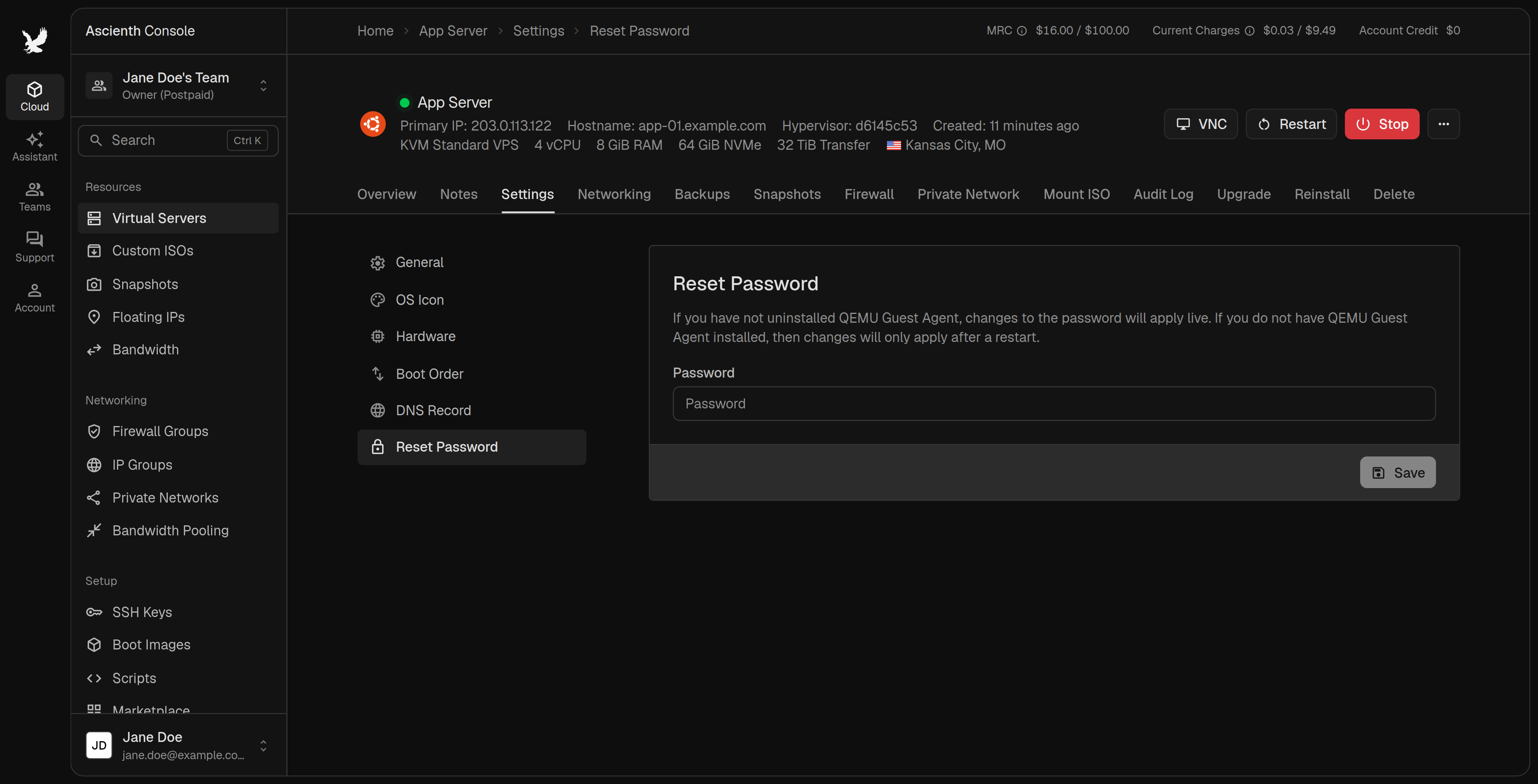
Open your server, click the "Settings" tab, then "Reset Password".
Enter the new password
Type the new password in
Passwordand clickSave.
The password must be at least 5 characters long and can only use characters found on a US keyboard.
When the New Password Applies
If the QEMU Guest Agent is running on your server, the new password works right away.
If you have uninstalled the QEMU Guest Agent, or your server is off, the new password applies the next time your server starts. Restart the server to use it.
Resetting the password does not change the SSH keys on your server.
Still stuck? Contact our team
View as Markdown