Server Settings
How to rename a server and change its icon, firmware, TPM, boot device and other settings in the Ascienth console.
Overview
Each server has a "Settings" tab in the Ascienth console at https://console.advinservers.com. Open the server from "Virtual Servers" and click "Settings". The sections are listed on the left. On a phone, pick a section from the list instead.
| Section | What it is for |
|---|---|
| "General" | The display name and operating system hostname. |
| "OS Icon" | The logo shown beside the server. |
| "Hardware" | Boot firmware, the virtual TPM and the guest agent. |
| "Measured Boot" | AMD SEV-SNP memory encryption and measured direct boot. |
| "Boot Order" | Whether the server starts from its disk or a mounted ISO. |
| "DNS Record" | Publish the server name supplied with the service. Manage reverse DNS from Networking. See Reverse DNS and Server DNS Names. |
| "Reset Password" | A new root or Administrator password. See Password Reset. |
To reinstall the operating system, use the "Reinstall" tab instead. See Server Reinstallation.
You only see the sections your role allows. See Team Permissions.
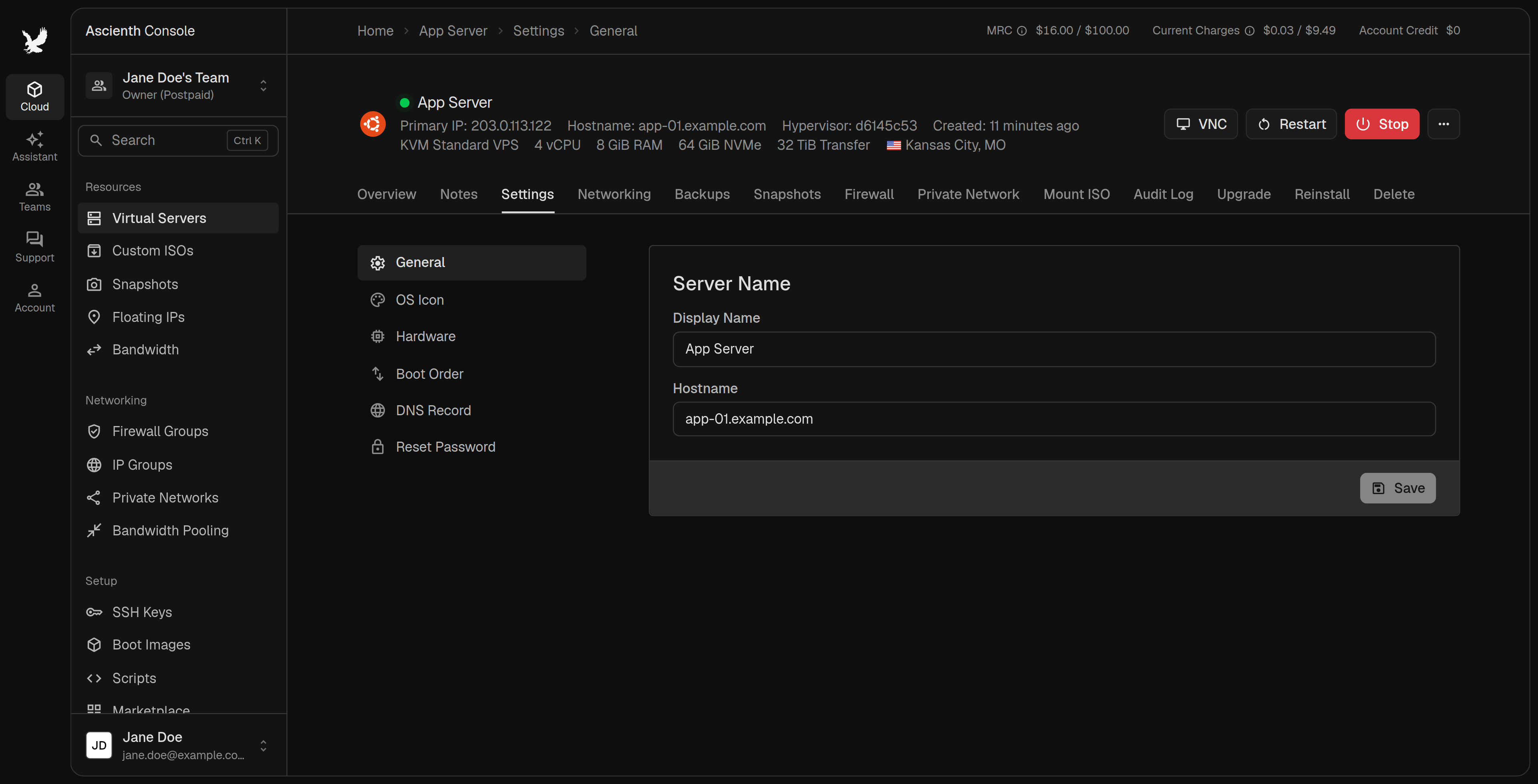
General
Display Name and Hostname
The "Server Name" card has two fields:
Display Nameis what the server is called in the console. It can be up to 40 characters. Changing it does not touch the server itself.Hostnameis the name set on the server's operating system. It must be a valid hostname, such asweb1.example.com.
Change either field and click Save.
You can also change either name from the server list: click the menu at the end of the server's row and choose Rename or Change hostname.
Server Icon
The "OS Icon" section sets the logo shown beside the server everywhere in the console. It is only cosmetic, so nothing on the server changes.
Pick a logo, or pick Automatic to use the logo of the operating system it was installed with. Then click Save. This is useful if you installed a different operating system yourself, for example from an ISO.
Hardware
The "Advanced Hardware" card has three settings. Change what you need and click Save.
| Setting | What it does |
|---|---|
Boot firmware |
Choose legacy BIOS or modern UEFI firmware. The installed operating system must support the mode you choose. |
Virtual TPM 2.0 |
Adds a software TPM 2.0 device. Windows 11 needs one, together with UEFI firmware. |
QEMU Guest Agent |
Enables the guest agent device. Turn it on only when the QEMU Guest Agent is installed and running in the operating system. This switch does not install it. |
If the section shows Hardware unavailable, we could not read the server's settings just now. Wait a moment and click Refresh.
Measured Boot
This section is for advanced confidential computing setups. Most customers do not need it. It appears only where supported; follow any unavailable notice in the console.
AMD SEV-SNP
The "AMD SEV-SNP" card only appears on servers that support it. Turn on Enable AMD SEV-SNP to protect the server's memory from the system hosting it, then click Save.
SEV-SNP needs UEFI firmware, so set Boot firmware to UEFI in the "Hardware" section first. Like firmware changes, it applies after a full shutdown and start.
Measured Direct Boot
The "UKI and Measured Boot" card lets the server start from your own Linux kernel and initramfs with SEV-SNP launch measurement, instead of the bootloader on its disk. It is experimental. Keep SEV-SNP turned on while measured direct boot is in use.
How to prepare boot files, upload them and use them on a server is covered in Boot Images.
If the card says Measured boot is not available for this server., the feature is not offered for this server.
Boot Order
The "Boot Device" card sets which device the server starts from:
Boot from main diskstarts the operating system installed on the server's disk. This is the normal setting.Boot from mounted ISOstarts from the ISO currently mounted on the server. It is only available while an ISO is mounted. See ISO Mounting.
Click an option to choose it. It is saved straight away, and the server uses it on its next restart.
Team Permissions
The team owner can always change every setting. Members need these permissions in their role:
| Permission | Allows |
|---|---|
View servers |
See the "General" section. Without the next permission, the name fields are read-only. |
Change server settings |
Change the display name, hostname and icon, and use the "Hardware" and "Measured Boot" sections. |
Reinstall servers |
Use the "Boot Order" section, because booting from an installer can replace what is on the disk. |
View networking |
See the "Reverse DNS" section. |
Change server passwords and SSH keys |
Use the "Reset Password" section. |
Frequently Asked Questions
I changed the hostname but the server still shows the old one
The new hostname is applied when the server next boots. Restart the server from the console.
My server will not start after I changed the firmware
The installed operating system probably does not support the firmware you chose. Change Boot firmware back to what it was, save, then stop and start the server.
Why is Boot from mounted ISO greyed out?
No ISO is mounted on the server. Mount one from the "Mount ISO" tab first. See ISO Mounting.
Why don't I see the AMD SEV-SNP card?
It only appears on servers that support SEV-SNP.
Still stuck? Contact our team
View as Markdown