Setup Scripts
How to save a cloud-config document or bash script and run it on a Linux server when you order or reinstall it.
Overview
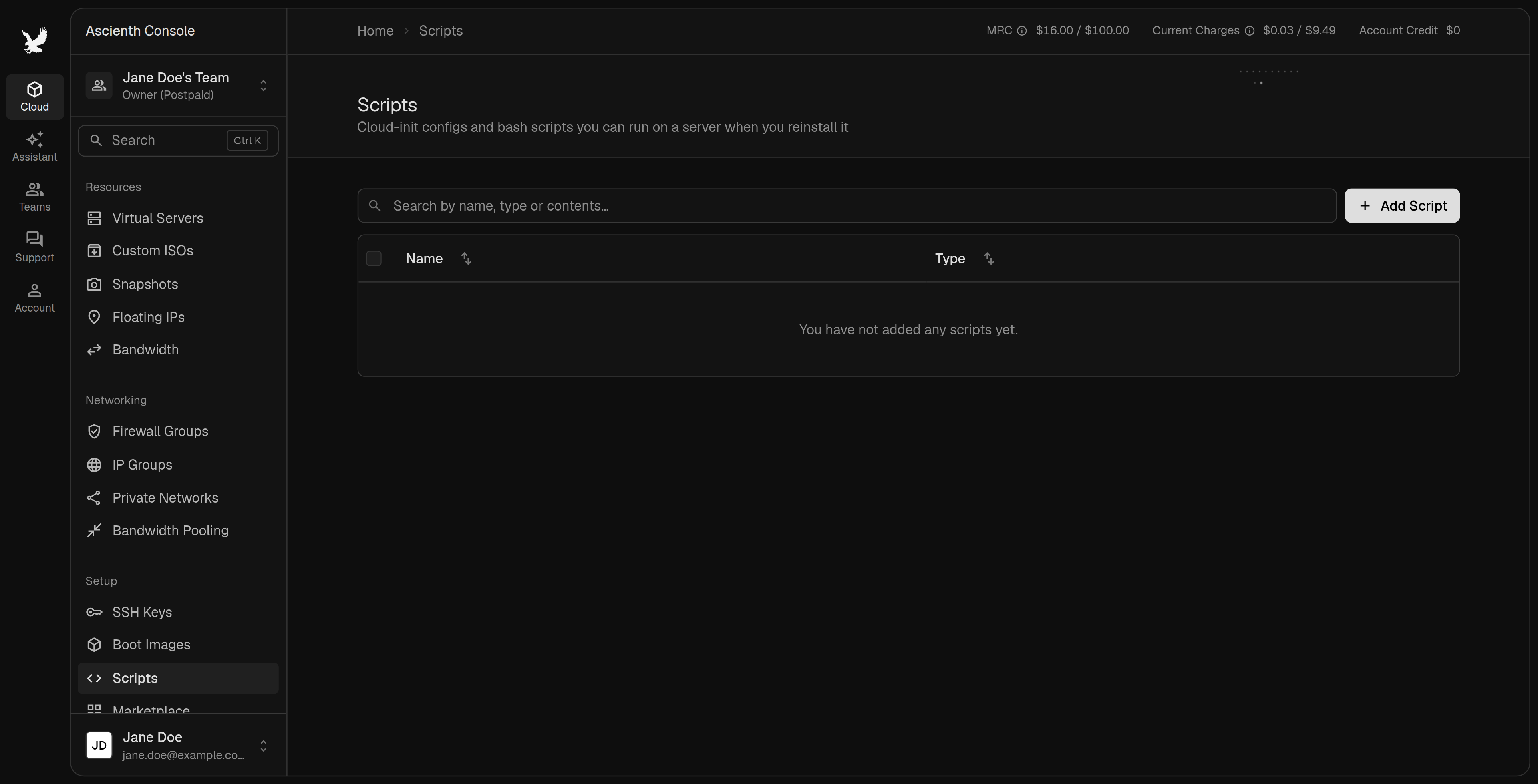
The "Scripts" page stores setup scripts that run on a Linux server the first time it boots after being built. Use them to install packages, create users, write config files, or run your own commands, so a new server comes up ready to use.
A saved script does nothing on its own. It runs only when you pick it while ordering a new server or reinstalling an existing one.
Open the Ascienth console at https://console.advinservers.com and click "Scripts" under "Setup" in the left sidebar.
Scripts are saved in the team you are working in. Each team has its own list, so switch to the right team before you add one.
Script Types
| Type | What it does |
|---|---|
Cloud-config |
A YAML document of settings, starting with #cloud-config. It is combined with the settings the operating system image already uses. |
Bash script |
A shell script, starting with #!/bin/bash. It runs on the first boot after the install. |
When a Cloud-config document is combined with the image's own settings:
- Lists of work, such as
packages,runcmd,bootcmd,write_files,usersandssh_authorized_keys, are added together. Your entries come after the image's, and exact duplicates are skipped. - For any other setting that both define, your value wins.
A simple example:
#cloud-config
packages:
  - nginx
runcmd:
  - systemctl enable --now nginx
Limits and Checks
Name: up to 64 characters, unique in your account.- Script content: up to 1 MiB.
- A
Cloud-configdocument must be valid YAML and must be a list of settings such aspackages:orruncmd:. Otherwise you see an error explaining the problem before the script is saved. - A
cloud-configdocument saved as aBash scriptis refused, because it would fail when run as a shell script. Choose theCloud-configtype for it instead.
Adding a Script
Open the form
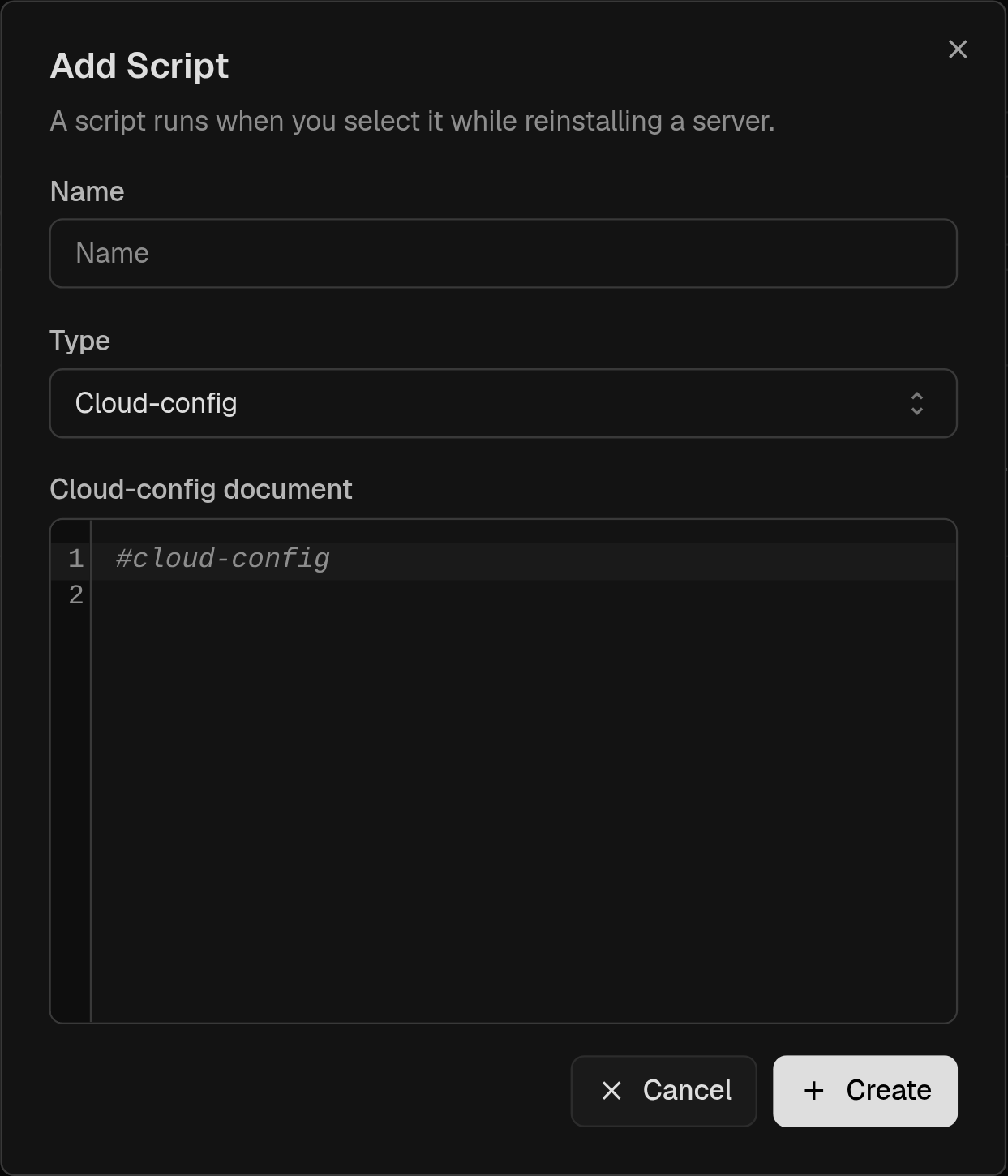
On the "Scripts" page, click
Add Script.Name it and pick a type
Enter a
Nameand choose aType:Cloud-configorBash script. The editor starts with#cloud-configor#!/bin/bashfor you.Write the script
Write or paste your script into the editor.
Save
Click
Create. The script can now be picked the next time you order or reinstall a server.
You can also add a script straight from the order or reinstall form with Create Script. The new script is selected for you.
Running a Script on a Server
Saved scripts appear in the "Setup Script" section of two forms:
- Ordering a server, on the "Order a Server" page.
- Reinstalling a server, on the server's "Reinstall" tab. See Server Reinstallation.
Click a script to select it, and click it again to clear it. You can pick one script per server. The script runs during the first boot of the newly built server, after the operating system is installed.
Scripts are also not available on every server. If a server's "Reinstall" tab has no "Setup Script" section, that server cannot run scripts.
Editing or Deleting a Script
Click the menu at the end of the script's row:
Editlets you change the name, type and content. ClickSavewhen you are done.Deleteremoves the script. To confirm, type the script's name and clickDelete.
Servers that were already built with a script are not affected by editing or deleting it. Anything the script already did on those servers stays as it is.
If the team owner has more than one team, they can also choose Move to team to move a script to another of their teams.
Team Permissions
The team owner can always manage scripts. Members need these permissions in their role:
| Permission | Allows |
|---|---|
View setup scripts |
See the scripts saved in the team, including their content. |
Manage setup scripts |
Add and edit scripts. |
Delete setup scripts |
Delete scripts. |
Frequently Asked Questions
My script did not seem to run. How do I check?
Log in to the server and check its first-boot logs under /var/log/. Our services are unmanaged, so we cannot debug the script for you.
Can I run a script on a server that is already running?
No. Scripts only run when a server is ordered or reinstalled. On a running server, run the commands yourself.
Still stuck? Contact our team
View as Markdown