Support Tickets
Open a ticket, attach files and reply to our support team.
Overview
Click "Support" in the left rail to talk to our support team. Tickets are private to your account. Selecting someone else's team does not show their tickets.
Tickets opened in the console are also available in the client area. All services are unmanaged; we help with our services but do not install or configure software inside your server.
Check the matching guide first
| What you need | Guide |
|---|---|
| Find a service or server password | Find your services |
| Connect with SSH or Remote Desktop | Connect to your server |
| Fix a timeout or rejected login | Cannot connect |
| Find a payment or top-up | Payment troubleshooting |
| Change the primary IP | Change your IPv4 |
| Understand a suspension | Suspended server |
If you still need help, include the affected service, exact error, start time and timezone, and what you already tried. Keep replies about the same problem in the existing ticket. Do not include passwords or private keys.
Open a ticket
Choose New Ticket
Click
New Ticketin the Support sidebar. If something is down, check the network status link first.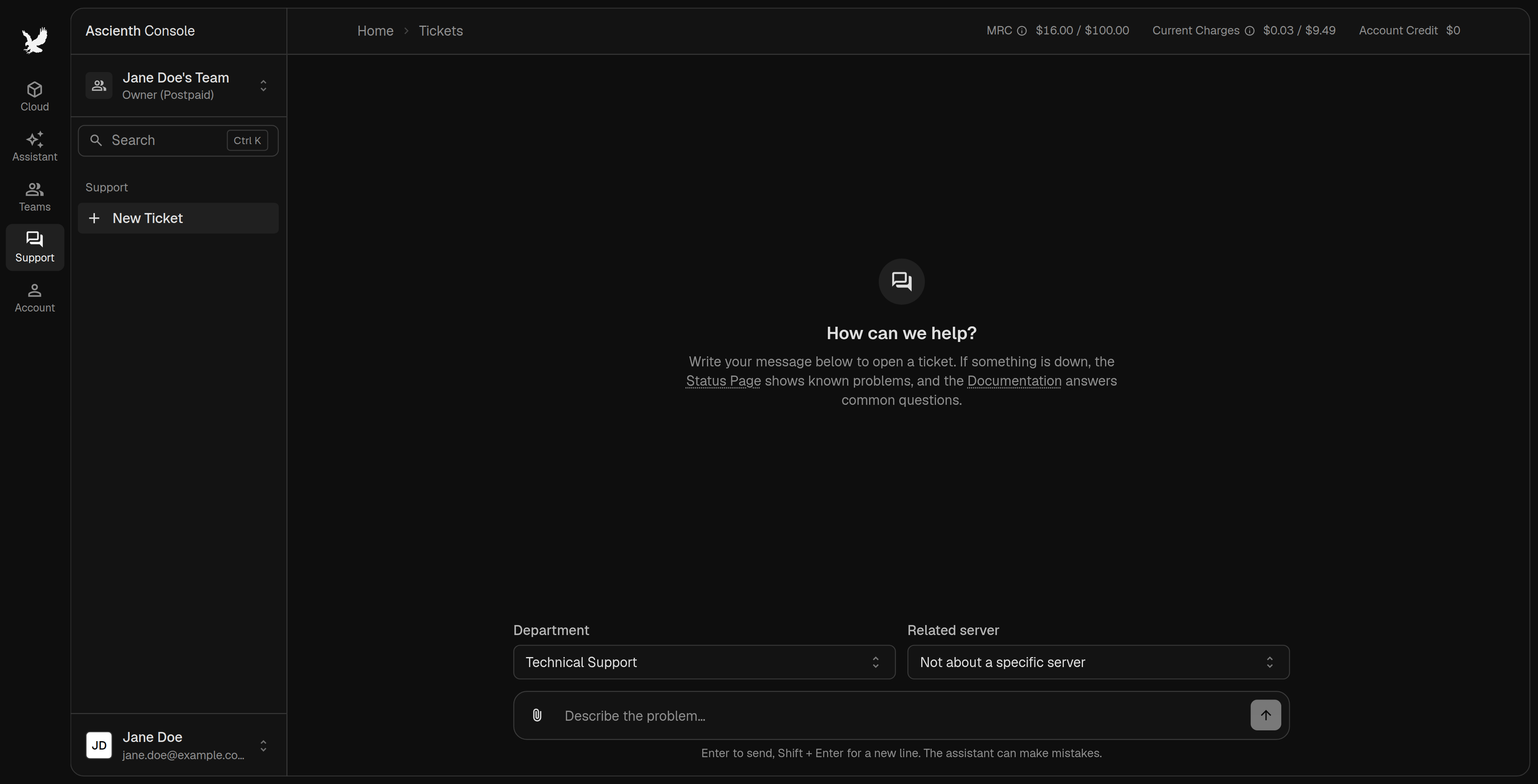
Choose the department and server
Pick the department and related server. Leave
Not about a specific serverselected for general questions.Send your message
Explain what happened, when it began and what you have tried. Include the exact error where possible. The console creates the subject from your message. Click the send button or press
Enter. UseShift + Enterfor a new line.
Find and reply to a ticket
Tickets appear in the sidebar under "Open", "Answered" or "Closed". Click a subject to read the conversation. Sent means your message has been sent; Answered means support has replied.
Type at the bottom of the conversation to reply. Our replies also reach your account email.
Attach files
Use the paperclip or drag files onto the message box. You can attach files when opening a ticket or replying.
- Up to 5 files per message.
- Up to 4 MB per file and 8 MB in total.
- Common image, document, log, configuration and archive formats are accepted. The form explains if a file type is refused.
Do not include passwords, private keys or other secrets.
Close or reopen a ticket
When the issue is resolved, use the close action and confirm Close Ticket. The conversation stays readable. Reply to a closed ticket to reopen it.
If the console cannot load support, try again later or use the client area.
Still stuck? Contact our team
View as Markdown