Firewall
How to write firewall rules in reusable firewall groups, apply them to your servers, and use IP groups as a rule source in the Ascienth console.
Overview
The Ascienth console has a network firewall that filters traffic before it reaches your server. Rules are not written on the server itself. Instead, you write them in a firewall group and apply the group to as many servers as you like. Change a rule once and every server using the group picks it up.
An IP group is a named list of addresses. You can use it as the source of a rule, so one rule can allow or block a whole list of addresses.
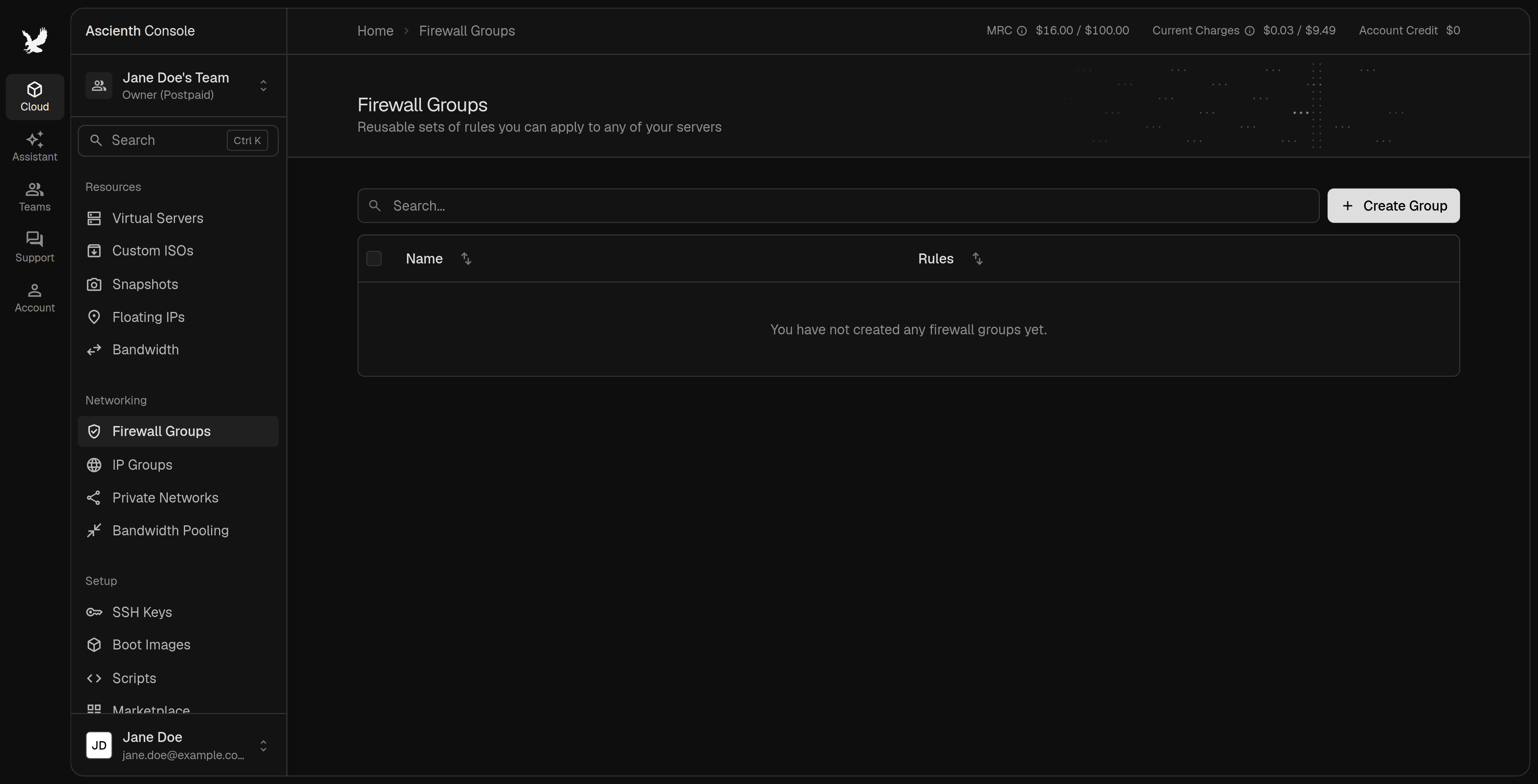
Open the Ascienth console at https://console.advinservers.com. "Firewall Groups" and "IP Groups" are under "Networking" in the left sidebar. Each server also has a "Firewall" tab that shows the groups applied to it.
Firewall groups and IP groups belong to the team you are working in. Team members need these permissions:
| Permission | What it allows |
|---|---|
View the firewall |
See firewall groups, their rules and IP groups. |
Change the firewall |
Create and edit groups, rules and IP groups, and apply or remove groups on servers. |
Delete firewall settings |
Delete firewall groups, rules and IP groups. |
How Rules Are Matched
Each firewall group has two lists of rules:
- Inbound Rules cover traffic arriving at the server.
- Outbound Rules cover traffic leaving the server.
Rules are matched from the top down. The first rule that matches a packet decides what happens to it, either ACCEPT or DROP. Order matters, so put specific rules above general ones.
Creating a Firewall Group
Open the Firewall Groups page
Click "Firewall Groups" in the left sidebar, then click
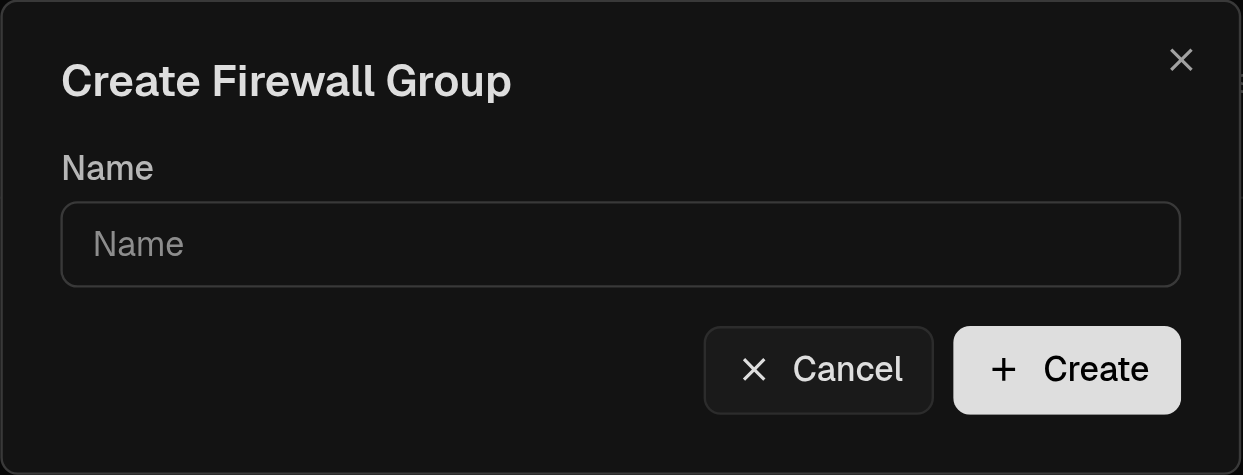
Create Group.Name the group
Enter a
Nameand clickCreate. Names can be up to 100 characters and may only contain letters, numbers, spaces, dots, dashes and underscores. Each name must be unique.Open the group
Click the group in the list. It opens on the "Rules" tab.
To rename a group, click the menu at the end of its row and choose Edit.
Adding Rules
Start a rule
On the group's "Rules" tab, click
Add Inbound RuleorAdd Outbound Rule.Fill in the rule
Action:ACCEPTorDROP.Service (Optional): a common service such as SSH, HTTP, HTTPS, DNS, MySQL or RDP. A service sets its own protocol and ports, so those fields are turned off when you pick one.Protocol:TCP,UDP,ICMP,GREorNone.Port StartandPort End: the destination port. LeavePort Endblank for a single port.Port Startalso accepts a range like8000:8100or a comma-separated list. Ports do not apply to ICMP, GRE orNone.Source:Any Address,Specific Address(enter it inAddress), orIP Group(pick one of your IP groups).
Save the rule
Click
Create. The rule is added to the bottom of its list.
Changing the Order
Click the menu at the end of a rule and choose Move up or Move down. To change a rule, click it or choose Edit. To remove it, choose Delete and type the rule's ID to confirm. A deleted rule is removed from every server using the group.
Applying a Group to a Server
Open the server's Firewall tab
Click your server, then the "Firewall" tab. It lists the groups already applied.
Add a group
Click
Add Firewall. Pick a group from theFirewallmenu and clickAdd.To start a new group here, choose
Create New Firewall, enter aNameand clickCreate. The new group is applied to this server straight away. Add its rules from the "Firewall Groups" page.Wait for it to apply
The
Attachment Statuscolumn showsSyncingwhile the rules are being applied, thenAttached. If it showsFailed, the last attempt to apply the group did not work. Hover over the status for details.
To take a group off one server, click the menu at the end of its row on the server's "Firewall" tab and choose Remove. The group is kept and stays on your other servers.
The group's "Servers" tab lists every server it is applied to, with the same status. You can remove a server from there with Remove from group.
Deleting a Firewall Group
On the "Firewall Groups" page, click the menu at the end of the group and choose Delete. Type the group's name to confirm.
Match every address
Leave the rule's source or destination field blank when you want it to match any address. You do not need an IP group containing 0.0.0.0/0 and ::/0 just for that purpose.
If a group reports that its rules could not be applied, check the fields and save the corrected group. If it still fails, send the exact error and rule details to support. Do not open all management ports or delete your working access rules to clear the message.
IP Groups
Use an IP group when several rules, or several firewall groups, need the same list of addresses. Update the list once and every rule using it follows.
Create the IP group
Click "IP Groups" in the left sidebar, then
Create IP Group. Enter aNameand clickCreate. The same naming rules apply as for firewall groups.Add addresses
Click the group, then
Add Addresses. Enter one address or CIDR range per line inAddresses, for example203.0.113.7or203.0.113.0/24. You can add aNoteto remember whose addresses they are. ClickAdd.Addresses already in the group are skipped. A range written as a span, like
1.2.3.4-1.2.3.9, is not accepted. Write it as CIDR ranges instead.Use it in a rule
When you add a firewall rule, set
SourcetoIP Groupand pick the group.
An IP group can hold up to 2,048 addresses. A rule that uses an empty group matches nothing.
To edit or delete one address, click the menu at the end of its row. To rename or delete the whole group, use the menu on the "IP Groups" page.
Frequently Asked Questions
Can I change the default policy or turn the firewall off?
No. Every server's firewall is on and allows all traffic by default. You control what is blocked with the rules in your firewall groups. With no groups applied, nothing is blocked.
Does the firewall filter traffic on my private network?
No. Traffic on a private network is not filtered by the console firewall. Use a firewall inside your server if you need to restrict it.
Can I open port 25 with a firewall rule?
No. Outgoing port 25 is blocked separately from your firewall groups. See Port 25 Unblocking.
Can I use one group on servers in different locations?
Yes. A firewall group is not tied to a location. Apply it to any of your servers in the team.
Still stuck? Contact our team
View as Markdown