Account Settings
How to change your contact details, email address and password, adjust how the console looks, and read your audit logs.
Overview
Your account holds your contact details, your billing address, your email address and your password. You manage them in the Ascienth console at https://console.advinservers.com, from the "Account" section of the sidebar.
The pages in this section always show your own account, whichever team you have selected. If you are a member of someone else's team, you see and change your own details here, never theirs. See Teams and Accounts.
This page covers:
- "Account Details": your name, phone number, billing address, email address and password.
- Appearance and Accessibility: themes, custom colors, interface size and showcase mode.
- Privacy and Account Deletion: close your account and erase personal details.
- Resource Quotas: check limits and request increases.
- "Audit Log": a record of what has been done on your account, and the "Team Audit Log" for a single team.
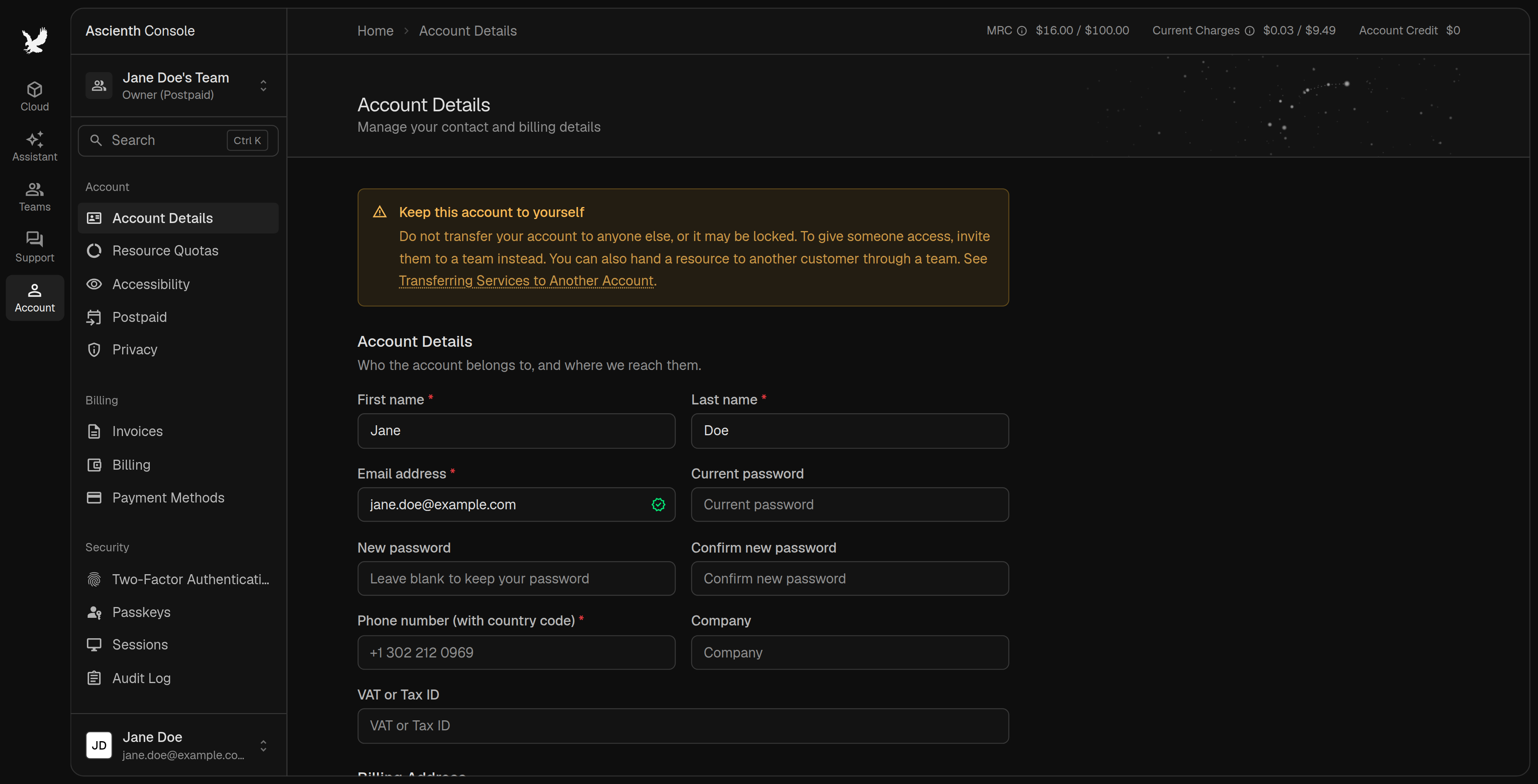
Account Details
Click "Account Details" in the "Account" section of the sidebar. The page has two parts:
- Account Details: who the account belongs to and where we reach you. This holds
First name,Last name,Email address,Current password,New password,Confirm new password,Phone number (with country code),CompanyandVAT or Tax ID. - Billing Address: the address your invoices are made out to. This holds
Address,Address line 2,City,State or region,PostcodeandCountry.
These details are shared with the client area, so a change made here also applies there.
Changing Your Details
Edit the fields
Change any of the contact or address fields.
First name,Last name,Phone number (with country code),Address,City,PostcodeandCountryare required. The others can be left empty.Save
Click
Save Changes. The button stays disabled until something has changed. When the save works, you see "Account details saved". Your invoices and anything we send you use the new details.
Changing Your Email Address
Your email address is where invoices, server notices and password resets are sent. To move your account to a new address, you prove that you can read mail sent to it.
Enter the new address and your password
On "Account Details", type the new address in
Email address. Then type your password inCurrent passwordand clickSave Changes.Open the code we email you
We email a six-digit code to the new address and take you to the "Confirm Your New Email" screen. The code is good for 15 minutes. If it does not arrive, check your spam folder or click
Resend Code. Each new code replaces the last one.Enter the code
Type the code. The form submits when you enter the sixth digit, or you can click
Change Email. If your password confirmation has run out in the meantime, you are asked for your password again first.
Your account stays on the old address until the code is accepted. Once it is, your account and your client area login both move to the new address, and we email a notice to the old address saying it was changed.
- The new address cannot already be in use. If it is, you see "That email address is already in use on another account."
- After 5 incorrect codes, the code stops working and you need to ask for a new one.
- If you leave before entering the code, "Account Details" shows "A change is waiting for its code". Click
Finish the changeto go back to the code screen, orcancel itto stop the change. Cancelling does not need your password.
Changing Your Password
Enter your current password
On "Account Details", type your password in
Current password.Enter the new password twice
Type the new password in
New passwordand again inConfirm new password. Leave both empty if you do not want to change your password.Save
Click
Save Changes.
If you signed up in the client area, your console password is your client area password. The page tells you so under the password fields, and a new password set here changes it in the client area too.
If You Forget Your Password
On the sign-in page at https://console.advinservers.com, click Forgot your password? under the password field. If the link is not shown, password resets are not available from the console. Open a ticket at https://clients.advinservers.com/contact.php instead.
Enter your email address
Type the address you sign in with in
Emailand clickSend reset link.Follow the link in the email
We send a link to set a new password. It can take a few minutes to arrive. The link sets the password in the client area, which is the same password you use for the console.
You always see the same answer, "If an account exists for that address, a link to reset its password is on its way.", whether or not the address has an account. This stops anyone from using the form to find out which addresses are our customers. Reset requests for an existing account are recorded in its audit log.
Accessibility
For themes, custom colors, showcase mode and AI settings, see Appearance and Accessibility.
Open "Account" > "Accessibility" to choose a theme, custom colors and interface size. You can also blur personal details for screen sharing or disable AI features. These appearance choices are saved in your browser.
Audit Logs
The console records what is done on your account: signing in, changes to servers and other resources, team changes, and account changes such as a new email address. There are two logs, and they answer different questions.
| Log | Where to find it | What it shows | Who can read it |
|---|---|---|---|
| Audit Log | "Audit Log" in the "Security" group of the "Account" section | Everything done on your own account, across every team you own, including events that belong to no server, such as signing in. | Only you. Every person has their own. |
| Team Audit Log | "Audit Log" in the "Teams" section | Everything done in the selected team, by everyone in it, with the person who did each thing. | The team owner, and members whose role allows it. |
Each server also has its own audit log tab, which shows the part of this history that is about that server.
Your Account Audit Log
The "Audit Log" page lists the newest entries first, with these columns:
- Event: what happened.
- Resource: the server or other resource it was about, if any.
- IP Address: where the request came from.
- When: the date and time.
Type in the search box to find entries by what happened, the resource or server name, or the IP address. The log is split into pages, which you move through at the bottom of the table.
Some of the security entries you may see:
- A sign-in from a new location that was challenged with an emailed code, and whether the code was accepted. See Account Security.
- A password reset that was requested for your account.
- Your email address being confirmed or changed.
The Team Audit Log
Open the team from the team menu at the top of the sidebar, then click "Audit Log" in the "Teams" section. The page is called "Team Audit Log" and lists everything done in that team, by everyone in it. It adds a Performed By column showing who did each thing. Use the person filter, which starts on Everyone, to see one person's actions. Two members of the same team see the same history.
To read it, a member's role needs both the View the team (or Manage the team) permission and the View servers permission. Without them, the page says "You cannot see this history". The team owner can always read it. See Team Members and Roles.
Frequently Asked Questions
Why can't I change my billing address?
If the billing system cannot be reached, "Account Details" shows "Billing unavailable" and your details cannot be read or changed until it is back. You can still change your password while this message is shown. Try again later, and if it does not clear, open a ticket at https://clients.advinservers.com/contact.php.
Does changing my email here change it in the client area?
Yes. Your console account and your client area login move to the new address together, or neither moves.
Why don't I see my team members' names in my account audit log?
Your account audit log shows what happened, but not who did it. To see which person did something in a team, open that team's "Team Audit Log".
Still stuck? Contact our team
View as Markdown