Windows Server Support
Install Windows Server, connect with Remote Desktop and check licensing requirements.
Overview
Choose a Windows Server image from the order or Reinstall page when offered for your server. Reinstalling an existing server erases its disk. See our Server Reinstallation guide.
The Reinstall tab offers these versions:
- Windows Server 2019
- Windows Server 2022
- Windows Server 2025
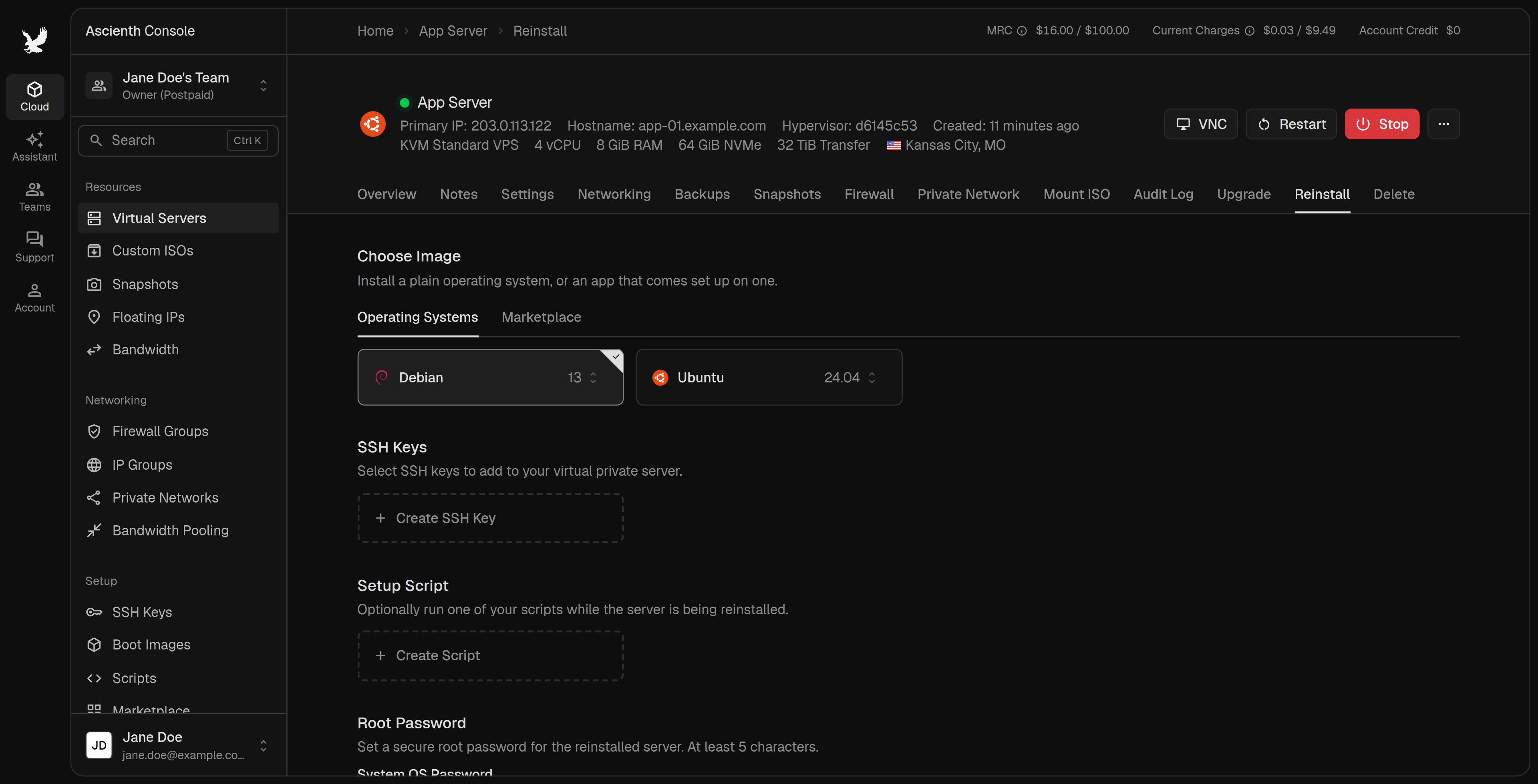
Connect to the desktop
Use the server's primary IP, username Administrator and the server password. Your console email and password are separate. See Connect with Remote Desktop for the steps and common login errors.
Licensing
Automatic installations use the Evaluation Edition of Windows Server, normally for 180 days. After the evaluation expires, Windows can shut down repeatedly. You must supply your own valid Windows Server license for continued use. Evaluation editions may need conversion before activation; see Windows shutdowns and licensing.
Manual Installation
If you need a Windows version or edition that the Reinstall tab does not offer, you can install it manually through the Custom ISO feature of the Ascienth console. See our Manual Windows Installation guide for full instructions, including the VirtIO drivers required to see your disk during setup.
Frequently Asked Questions
Does it matter when I created my account?
No. Use the Windows images offered for your server, regardless of when you signed up.
Do you provide Windows Server licenses?
No. Automatic installs use an evaluation edition. Providing a valid license and converting or activating Windows is your responsibility.
Still stuck? Contact our team
View as Markdown