Teams and Accounts
Choose a team, create separate resource groups and understand who pays.
Overview
Your account holds your login, personal details, invoices, credit and saved payment methods. A team holds resources such as servers, keys and networks. You can own several teams and join other people's teams.
The team menu at the top of the sidebar decides which resources you work on. Account pages always show your own details and invoices.
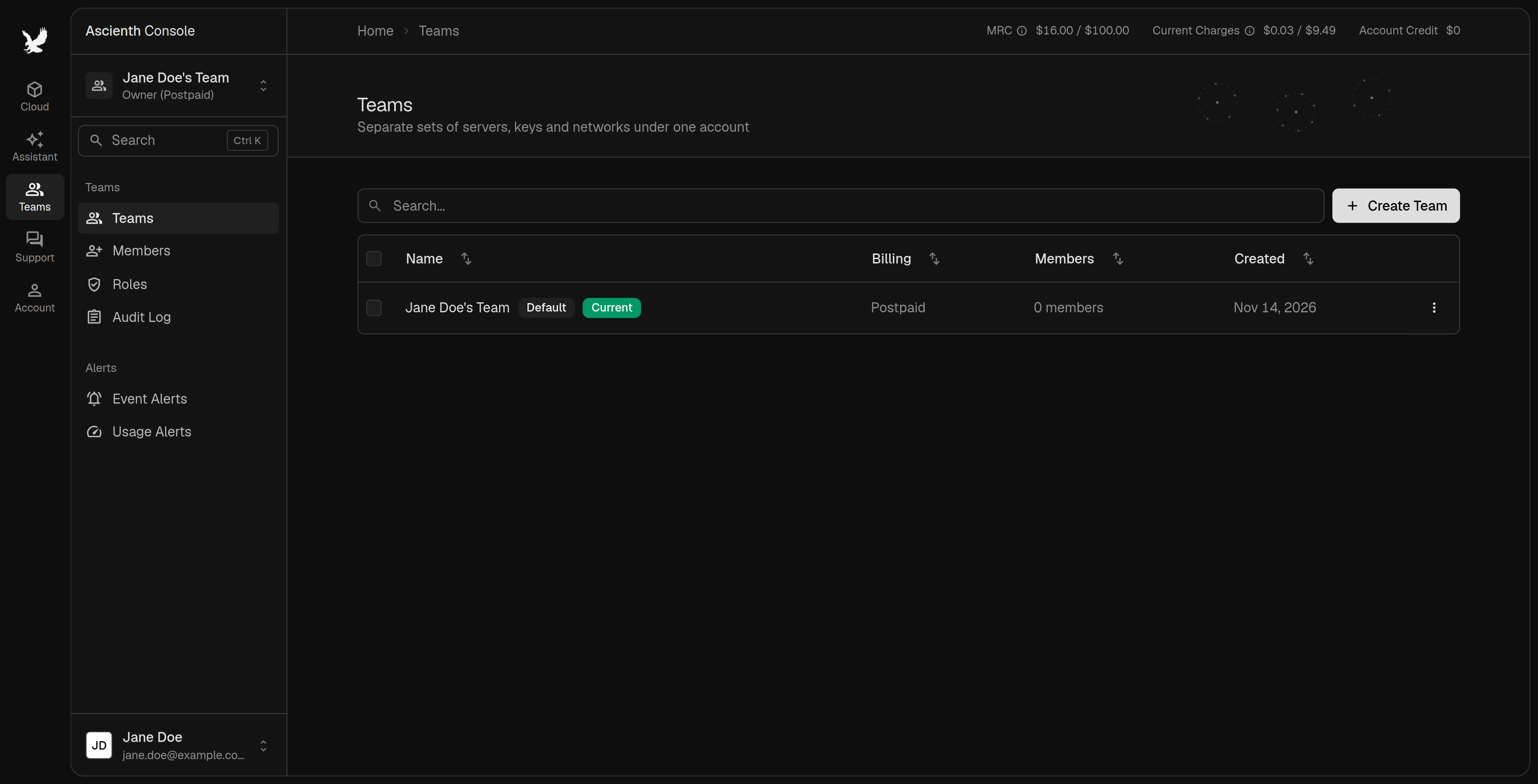
Create and select a team
Open "Teams" and click Create Team. Enter its name and choose a billing mode if a choice is offered. Newer accounts create postpaid teams only. Postpaid is offered only when it is enabled for your account. Create the team, then select it in the team menu.
Use the team's row menu to rename it or manage it. The default team is marked in the list. You must remove its resources and meet the checks shown before you can delete a team.
Who pays
The owner pays for everything in the team. Members with purchase permission spend according to that team's billing mode:
- Prepaid: purchases use the owner's account credit.
- Postpaid: usage goes on the owner's monthly invoice and counts toward their limit.
Adding funds while working in another person's team still adds to your own account. It does not pay that team's bills. If you are taking over payment, the owner can arrange an eligible service transfer rather than share a login.
A team member cannot see or pay the owner's invoices. No team role grants access to the owner's personal account settings or saved payment methods.
Move resources between your teams
Use Move to Team from a resource menu or selection toolbar where offered. Select the destination and any related resources the dialog asks about. Resolve attached resources that would otherwise be left across two teams.
Moving billed resources from prepaid to postpaid ends prepaid renewals, credits unused paid time and starts hourly billing. You cannot move them back to prepaid. Read the quote and accept this permanent change before confirming.
Free resources such as SSH keys and scripts do not change billing when moved. Transferring eligible services to another account has separate requirements; see Transferring Services.
Work with others
- Invite members and set roles.
- Set event and usage alerts.
- Open the team's "Audit Log" to see actions and who performed them.
Still stuck? Contact our team
View as Markdown