Account Security
How to turn on two-factor authentication, what happens when you sign in from somewhere new, and how to sign out other devices.
Overview
Your password is the front door to every server on your account. The Ascienth console at https://console.advinservers.com gives you three ways to protect it:
- Two-factor authentication asks for a code from an app on your phone every time you sign in.
- Sign-in codes by email check a sign-in from a network your account has not used before, if you have not turned on two-factor authentication.
- Sessions show every device that is signed in to your account, and let you sign them out.
These settings belong to your own account. Team members manage their own, and no team role gives anyone access to yours. See Teams and Accounts. For the sign-in page itself, see Launching Ascienth.
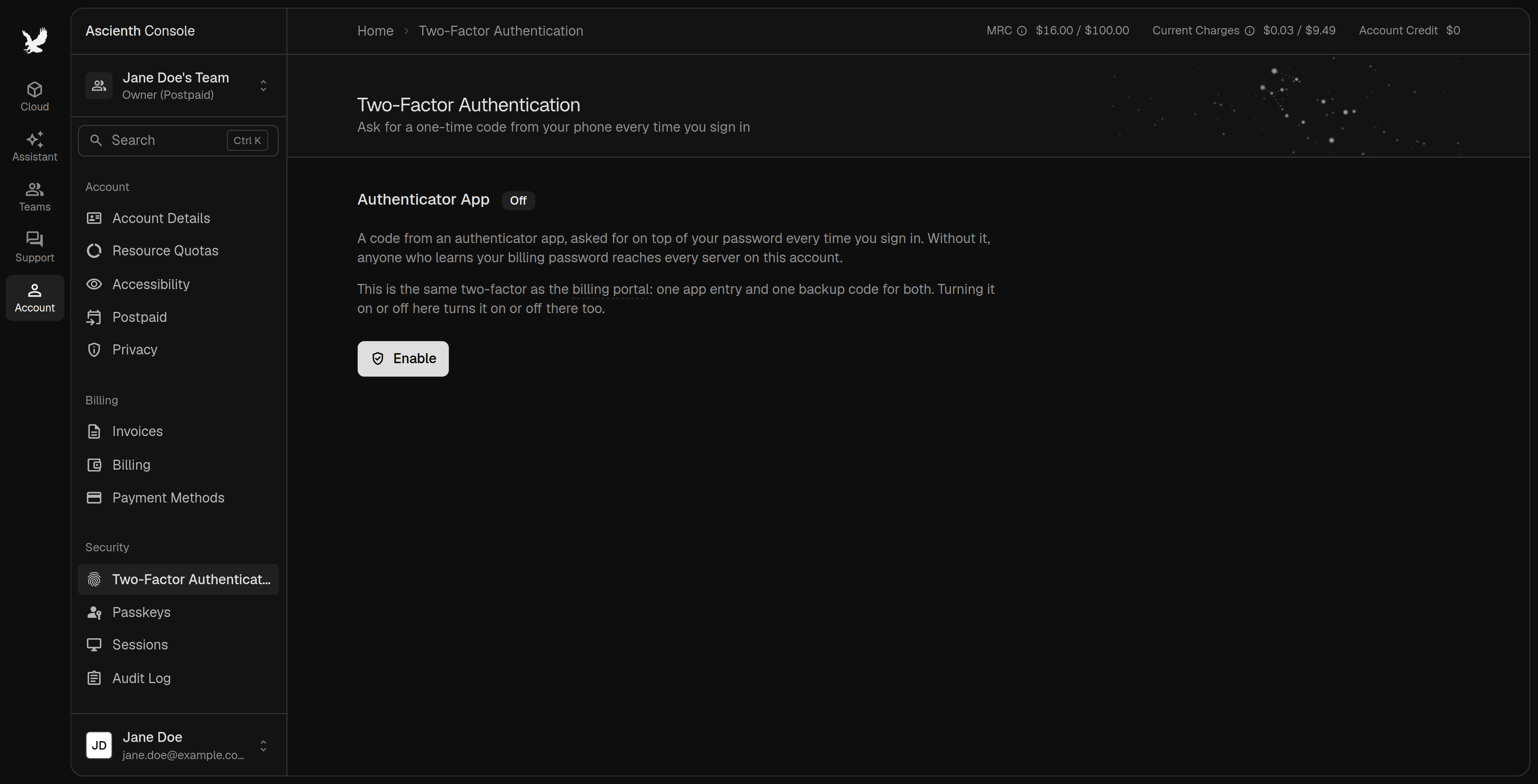
Two-Factor Authentication
Two-factor authentication asks for a code from an authenticator app on top of your password every time you sign in. Without it, anyone who learns your password can reach every server on your account. We strongly recommend turning it on.
Click "Two-Factor Authentication" in the "Security" group of the "Account" section of the sidebar. The status next to "Authenticator App" shows On, Off, or Not finished if you started the setup and did not confirm it.
Turning It On
Start the setup
Click
Enable. Enter your current password when asked and confirm.Scan the QR code
The "Two-Factor Setup" dialog shows a QR code. Scan it with an authenticator app such as Google Authenticator, 1Password or Authy. If you cannot scan it, click
Can't scan the code?to show a key you can type into the app instead.Enter the code from your app
Type the six-digit code your app shows in
Code from your appand clickConfirm. Two-factor authentication is now on.Save your recovery codes
Your recovery codes are shown straight away. Use
CopyorDownloadto keep them somewhere other than the phone your authenticator is on.
If you close the dialog before confirming, nothing is turned on. If the page shows Not finished, click Finish setup to start again.
Recovery Codes and Backup Codes
If you lose the device with your authenticator app, a recovery code lets you sign in once without it. What you get depends on your account:
- Recovery codes: if your two-factor authentication belongs to the console only (for example, it was set up in the console before it was shared with the client area), you get a set of recovery codes. Each one works once. To see them again, click
Recovery codesand enter your password. To replace them all, clickGenerate new codesin that dialog. - Backup code: if your two-factor authentication is shared with the client area, you get one backup code that works in both places. It is only shown when it is issued, so it cannot be looked up later. To get a new one, click
New backup codeand enter your password. The new code replaces the old one in the console and the client area.
Turning It Off
Click Disable and enter your current password. Your recovery codes or backup code stop working.
If your client area uses a kind of two-factor authentication the console cannot ask for, the page says so. You can manage it in the client area, or turn it off from the console.
Signing In With Two-Factor Authentication
After you enter your email address and password, the "Two-Factor Authentication" screen asks for the code from your app.
- Enter the code your app shows in
Code. - Lost your device? Click
Use a recovery codeand enter one of your saved recovery codes instead.
Accounts Using the Client Area's Two-Factor Authentication
If you turned on two-factor authentication in the client area and sign in to the console with your client area email and password, the console asks for the same code from your app.
Enter the code from your app
Type the six-digit code from the authenticator app you use for the client area, and click
Continue.Or use your backup code
If you lost the device, click
Use your backup codeand enter the backup code you were given when you set up two-factor authentication. Then clickContinue.Save your new backup code
A backup code works only once. After you use it, you see "Save your new backup code" with its replacement, which works in both the console and the client area. Copy it and keep it somewhere safe, then click
I have saved it, continueto finish signing in. Once you are in, set up two-factor authentication again on your new device.
After 5 incorrect codes, you are sent back to the sign-in page. Sign in again with your password to get another five tries.
Sign-In Codes by Email
If your account does not have two-factor authentication turned on, we may ask you to confirm a sign-in from a device or network your account has not used before. Instead of signing you in straight away, the console shows "Confirm this sign-in" and emails a six-digit code to your address. The screen shows part of the address so you know which inbox to check.
Open the email
Find the code we sent you. If it does not arrive, check your spam folder or click
Resend Code. A new code replaces the last one.Enter the code
Type the code. The form submits when you enter the sixth digit, or you can click
Continue.
Once the code is accepted, you are signed in and that network is remembered for your account. You are not asked again from the same network unless it goes unused for 90 days.
- The code is good for 10 minutes. If it expires, sign in again and we send another.
- After 5 incorrect codes, the code stops working. Ask for another code, or sign in again.
- Accounts with two-factor authentication never get this email. The code from your app already does the same job.
Each challenge, and whether it was passed or failed, is recorded in your audit log.
Passkeys
You can also sign in with a fingerprint, face or device PIN. See Passkeys to add or remove one.
Sessions
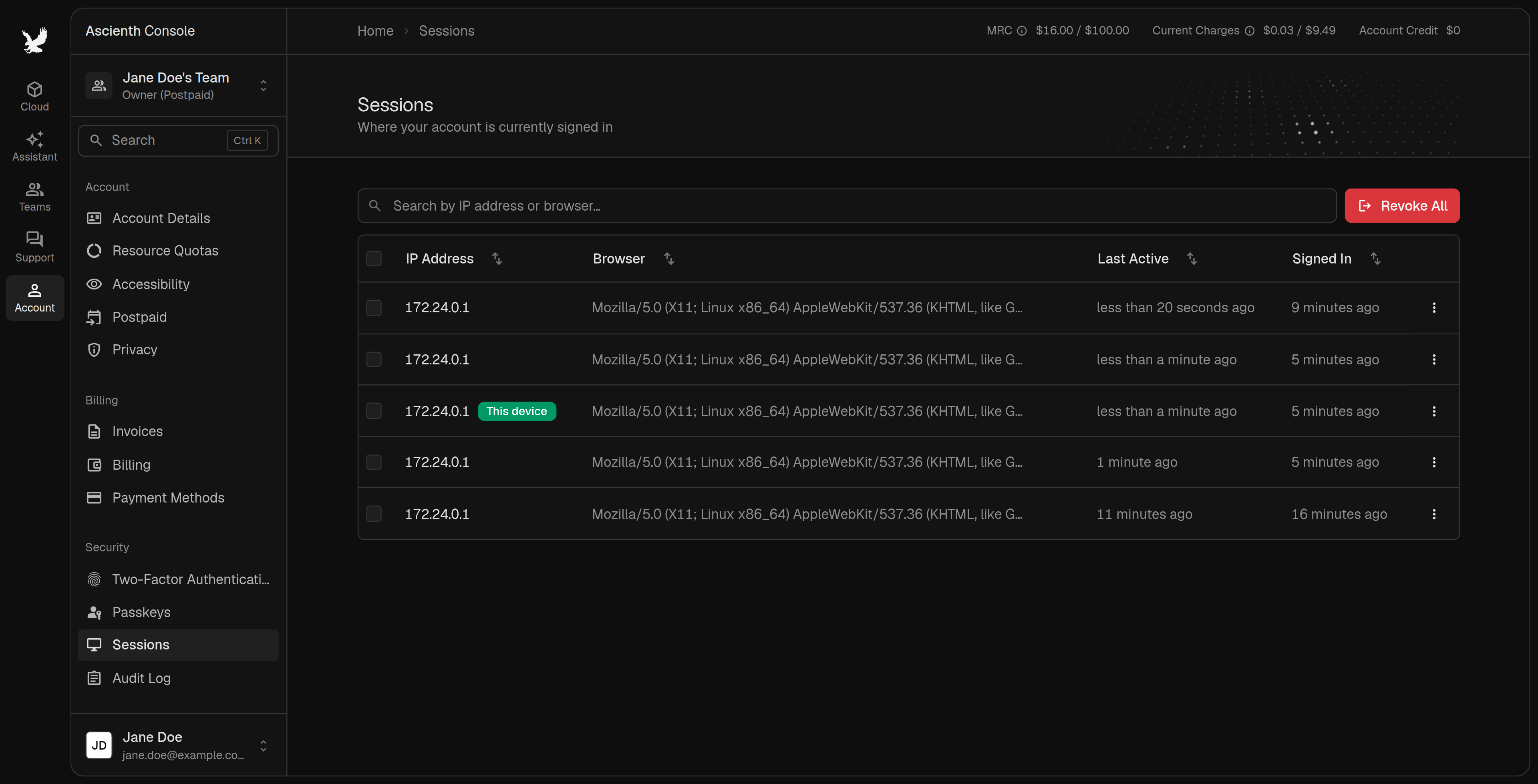
Click "Sessions" in the "Security" group of the "Account" section of the sidebar. The page lists everywhere your account is currently signed in, with these columns:
- IP Address: where the session was last seen. The device you are using now is marked
This device. - Browser: the browser and operating system, or
Unknown. - Last Active: when the session was last used.
- Signed In: when the session started.
Use the search box to find a session by IP address or browser.
Signing Out One Session
Click the menu at the end of the session's row and choose Revoke. In the "Revoke Session" dialog, click Revoke. That device is signed out immediately and must sign in again.
If you choose your current device, the option is called Sign out, and you are returned to the sign-in page.
Signing Out Every Other Device
Click Revoke All. The dialog tells you how many other sessions there are. Click Revoke to sign out every device except the one you are using. The button is disabled when there are no other sessions.
Frequently Asked Questions
Can a team member turn two-factor authentication on or off for me?
No. Two-factor authentication and sessions belong to each person's own account. A team member manages their own, and no role can change yours.
I turned on two-factor authentication in the client area. Do I need to set it up again?
No. The console reads the same setting, and the "Two-Factor Authentication" page shows it as On. Use the same authenticator app entry for both.
Why was I asked for an emailed code when I signed in from home?
Your home network may have changed, or you have not signed in from it for 90 days. Enter the code once and that network is remembered again. To stop these emails, turn on two-factor authentication.
Still stuck? Contact our team
View as Markdown