Postpaid Billing
Pay for hourly usage on a monthly invoice, check your limit, and stop charges.
Overview
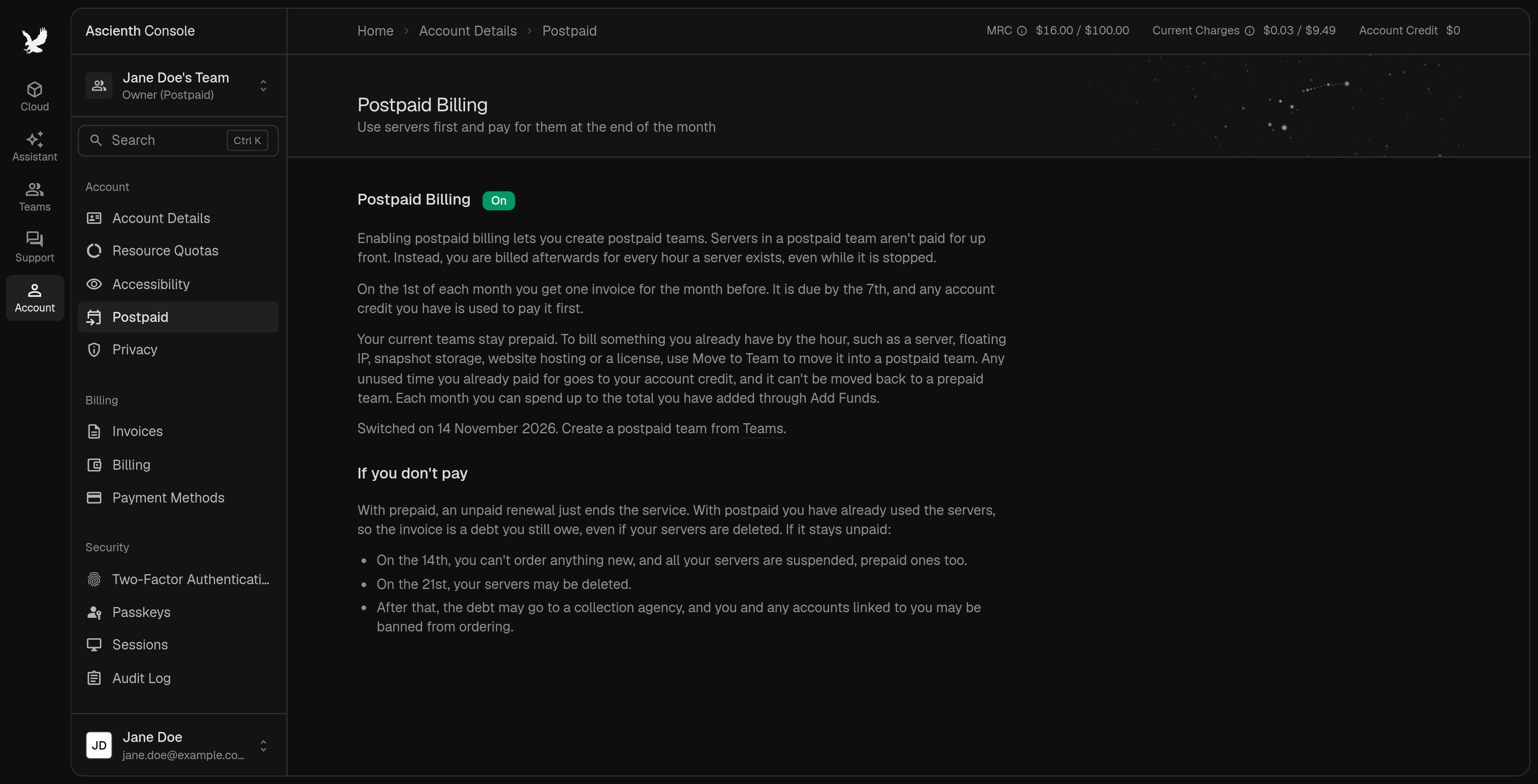
With postpaid billing, you use resources first and pay for them later. Your postpaid teams share one monthly invoice on your account.
Check the team menu at the top of the sidebar. Owner (Postpaid) means the selected team uses postpaid billing. Prepaid teams pay ahead instead.
How charges work
| Resource | How you pay |
|---|---|
| Virtual server | By the hour, up to its monthly price for an unchanged plan. |
| Paid floating IP | By the hour while you keep the address, even when it is detached. |
| Website hosting and licenses | By the hour when held in a postpaid team. |
| Extra bandwidth | A one-time charge added to your monthly invoice. |
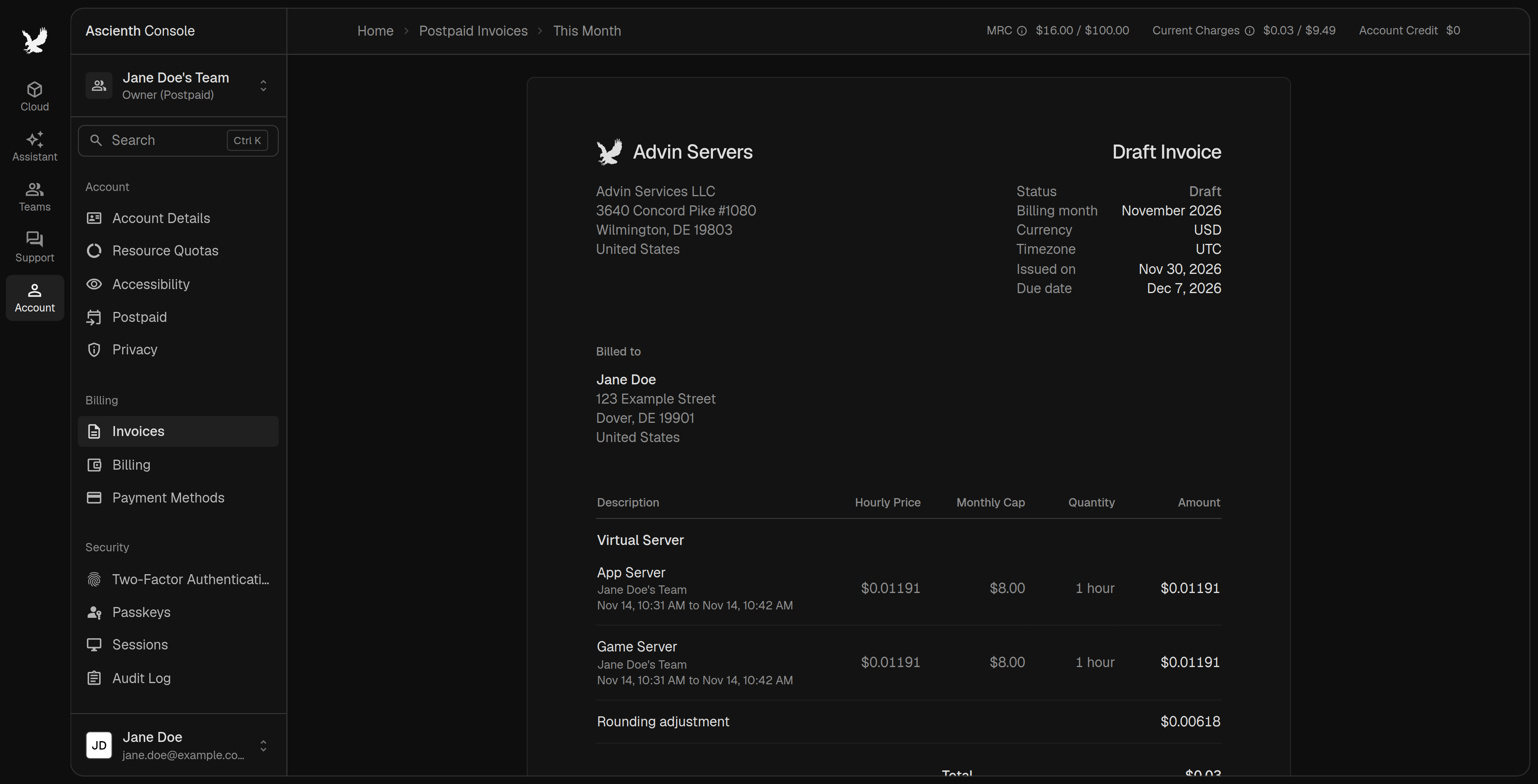
Part of an hour counts as a whole hour, with a minimum of one hour. The hourly rate is based on 672 hours per month. A resource kept for the full month reaches its monthly cap. The invoice can show a separate adjustment to keep the charge within that cap, and a small rounding adjustment to reach whole cents.
For example, at a displayed rate of $0.01191 per hour, 10 billed hours cost $0.11910 before the invoice total is rounded. An unchanged $8 monthly plan costs no more than $8 for the month. Upgrades, additional resources and one-time charges can increase your total.
Check your current charges
The dashboard shows MRC (monthly recurring cost) and Current Charges. MRC is the monthly cost of the resources you currently keep. Current charges show usage already billed for this month.
Open the current postpaid invoice to see the items behind the total. It is a draft while the month is in progress. It can change as you use, upgrade or delete resources.
Monthly invoices
We finalize the previous calendar month on the 1st, using UTC. The invoice is due on the 7th of that month. For example, November usage is finalized on December 1 and is due on December 7.
Small totals below the minimum invoice amount are carried forward and added to a later month. They are not waived. The standard minimum is $5; check your invoice for the amount due.
Pay from "Invoices". To charge your default saved payment method automatically, turn on "Automatic Payments" on the "Billing" page. Any available account credit is applied to postpaid invoices first, including credit added after publication. Saving a card alone does not turn on automatic card payments. See Invoices and Billing.
Your credit limit
Your postpaid credit limit controls how much you may commit to spending. It is not account credit and is not a free balance.
The check includes the monthly cost of resources you keep, pending purchases, this month's charges for resources you have deleted, and one-time charges. Deleting a server frees its future monthly cost, but does not erase the usage you already owe.
Open "Account" > "Resource Quotas" to check your limit. Eligible deposits can raise it, unless we have set a fixed limit for your account. Spend limits and available account credit are separate figures. If you need a higher limit, open a ticket.
Enable postpaid on an existing account
Open Postpaid
Open "Account" > "Postpaid". If postpaid is already on, you can create a postpaid team.
Read the terms and submit your request
Use the request option shown on the page. Read and accept the billing terms, then complete the card or PayPal verification. The amount shown is a temporary hold, not a deposit to account credit.
Wait for our decision
Approval for an existing prepaid account can take a week or longer. We email you the result. Do not submit another request while one is pending.
Create a postpaid team
Once approved, open "Teams" and create a postpaid team. Choose that billing mode if the form offers a choice. Select that team before ordering.
Existing teams and services stay prepaid until you move them.
New accounts complete payment verification during account setup. Follow the result shown there; a request from an older prepaid account is a separate process.
Move an existing prepaid service
- Open the service's menu and choose
Move to Team. - Choose one of your postpaid teams.
- Review the credit for unused paid time, accept the billing change and confirm.
Unused paid time is returned to account credit, prepaid renewals end, and hourly billing starts. Wait for confirmation before submitting the move again.
You can move servers, paid floating IPs, website hosting and licenses.
Stop charges
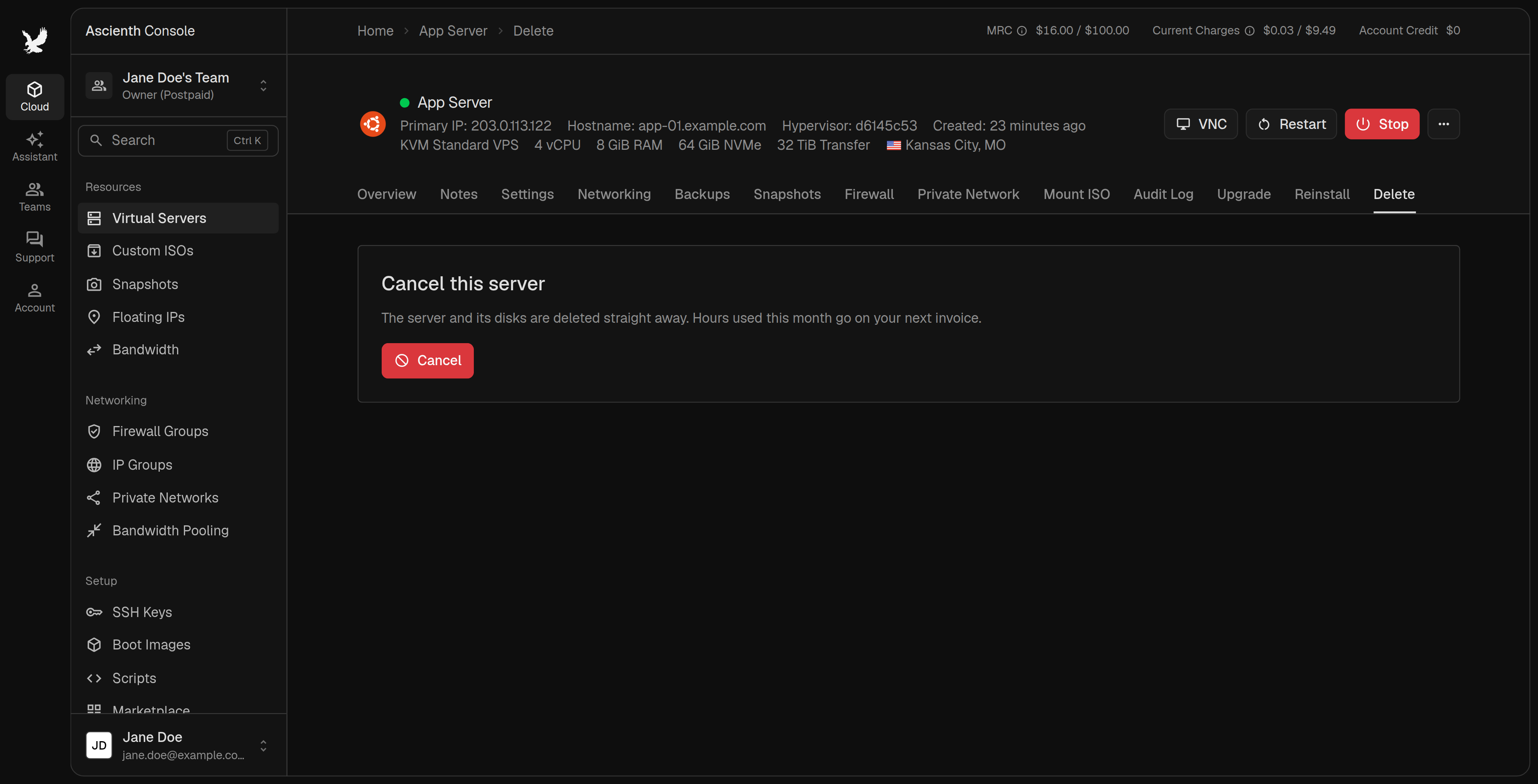
Open the server and choose "Delete", then click Cancel. Read the amount billed so far, select any floating IPs you also want to cancel, and enter the server name to confirm. Postpaid servers are deleted immediately; there is no paid term to finish.
If an invoice is overdue
Pay by the due date on the invoice. Under the standard schedule:
| Date in the following month | What happens if the bill remains unpaid |
|---|---|
| 7th | Payment is due. |
| 14th | The account goes on credit hold and its servers are suspended. New purchases are blocked. |
| 21st | The account is queued for closure by our staff. Services and their data may be deleted. |
After paying, allow time for the payment to clear and the account to update. Payment cannot restore services that have already been deleted. Open a ticket if payment has cleared but access has not returned.
Still stuck? Contact our team
View as Markdown