Passkeys
Sign in with a fingerprint, face or device PIN instead of a password.
Overview
A passkey lets your device or password manager prove it is you. Add one while you can still sign in normally.
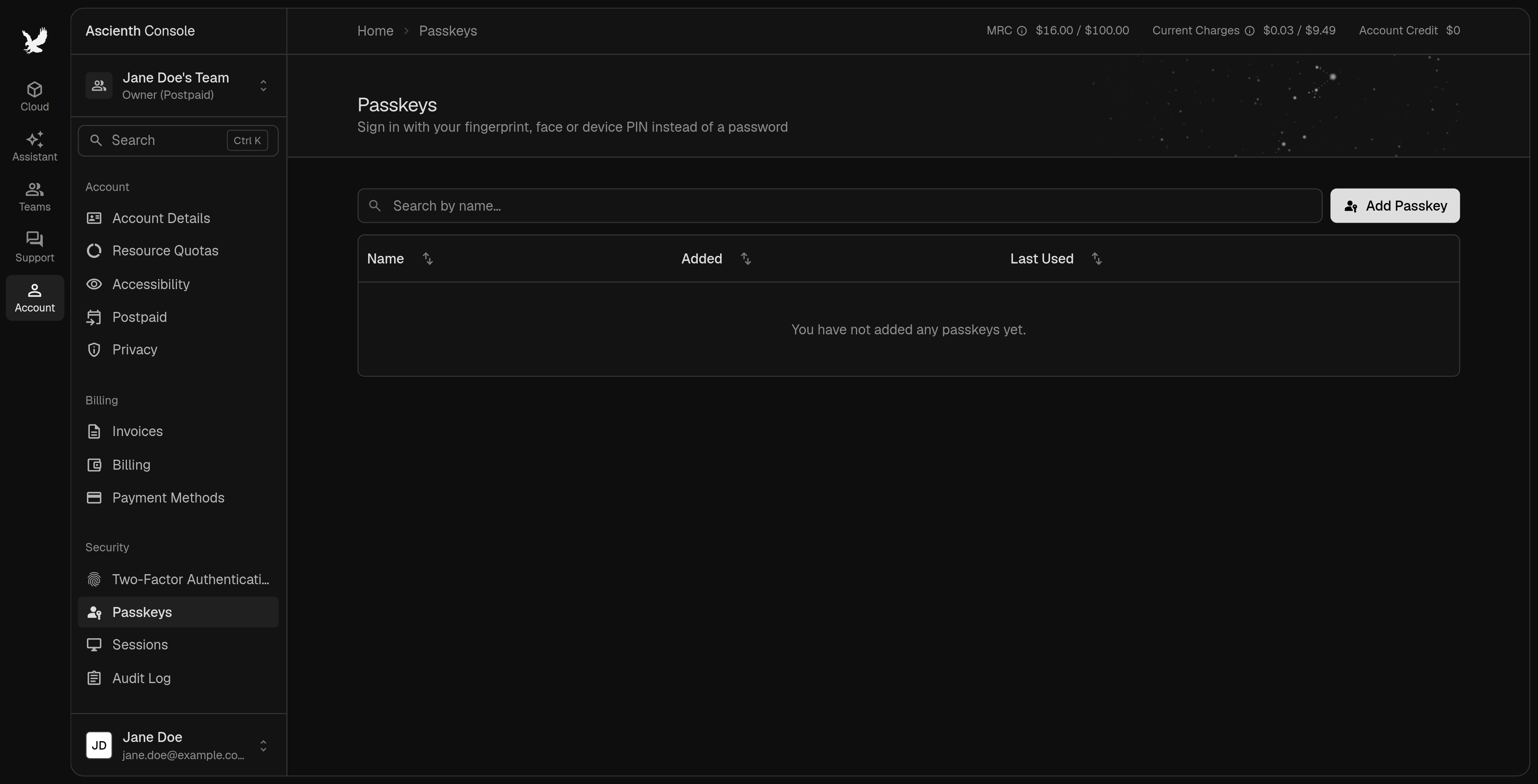
Add a passkey
Open Passkeys
Open "Account" > "Passkeys" and click
Add Passkey.Name it
Give it a name you will recognize, such as
Personal laptop. Confirm your account password if asked.Follow your device prompt
Choose where to save the passkey and complete the fingerprint, face, PIN or security key check. Keep the page open until the passkey appears in the list.
Use a browser and device that support passkeys. If the option is disabled, read the reason shown by the button.
Sign in
On the sign-in page, choose the passkey option and follow your device's prompt. If your passkey is stored on another device, use the options your browser offers to access it.
Remove a passkey
Open its row menu and choose Remove. Confirm your password when asked. This removes that passkey from the console; it does not remove other passkeys.
Keep another way to sign in before removing your last usable passkey. If a device is lost, remove its passkey and end its session.
Still stuck? Contact our team
View as Markdown