Bandwidth and Pooling
How server bandwidth limits work, how to buy extra transfer, and how to share transfer between servers in one city in the Ascienth console.
Overview
Most server plans come with a monthly bandwidth (transfer) allowance. This page explains what happens when a server uses it up, and the two ways the Ascienth console lets you get more out of it:
- Bandwidth blocks: extra transfer you buy once and point at servers or a city. Manage them on the "Bandwidth" page under "Resources".
- Bandwidth pooling: let all of a team's servers in one city share a single allowance. Manage it on the "Bandwidth Pooling" page under "Networking".
Check one server's usage
Open the server's "Overview" and find Bandwidth. Hover over the figure for used and remaining transfer, and check the reset date in its details. The graphs show traffic over time; they are different from the monthly allowance.
If "Bandwidth Pooling" is enabled, also check the selected team's city pool. A server can be throttled because the shared pool ran out.
How Bandwidth Limits Work
- A server's plan allowance resets monthly. Check the reset date shown for that server.
- Both incoming and outgoing traffic count toward transfer usage.
- We email you when a server reaches 25%, 50%, 75%, 90%, 95%, 99% and 100% of its allowance.
- When a server goes over its allowance, its connection is throttled to 1.25 MB/s (10 Mbps) until its usage resets, or until more transfer covers it.
- Servers without a transfer limit are not metered, so blocks and pools do not apply to them.
Bandwidth Blocks
A bandwidth block is extra transfer, bought in whole terabytes. It is a balance, not a monthly allowance:
- A block is only drawn from once a server has used up its own plan allowance.
- Whatever is left on a block carries over from month to month until it is spent.
- A block covers either a set of servers or one city's pool, never both at once.
- Blocks are priced by region, and a block can only cover servers in the region it was bought for. Blocks are labelled "Americas & EMEA" or "APAC".
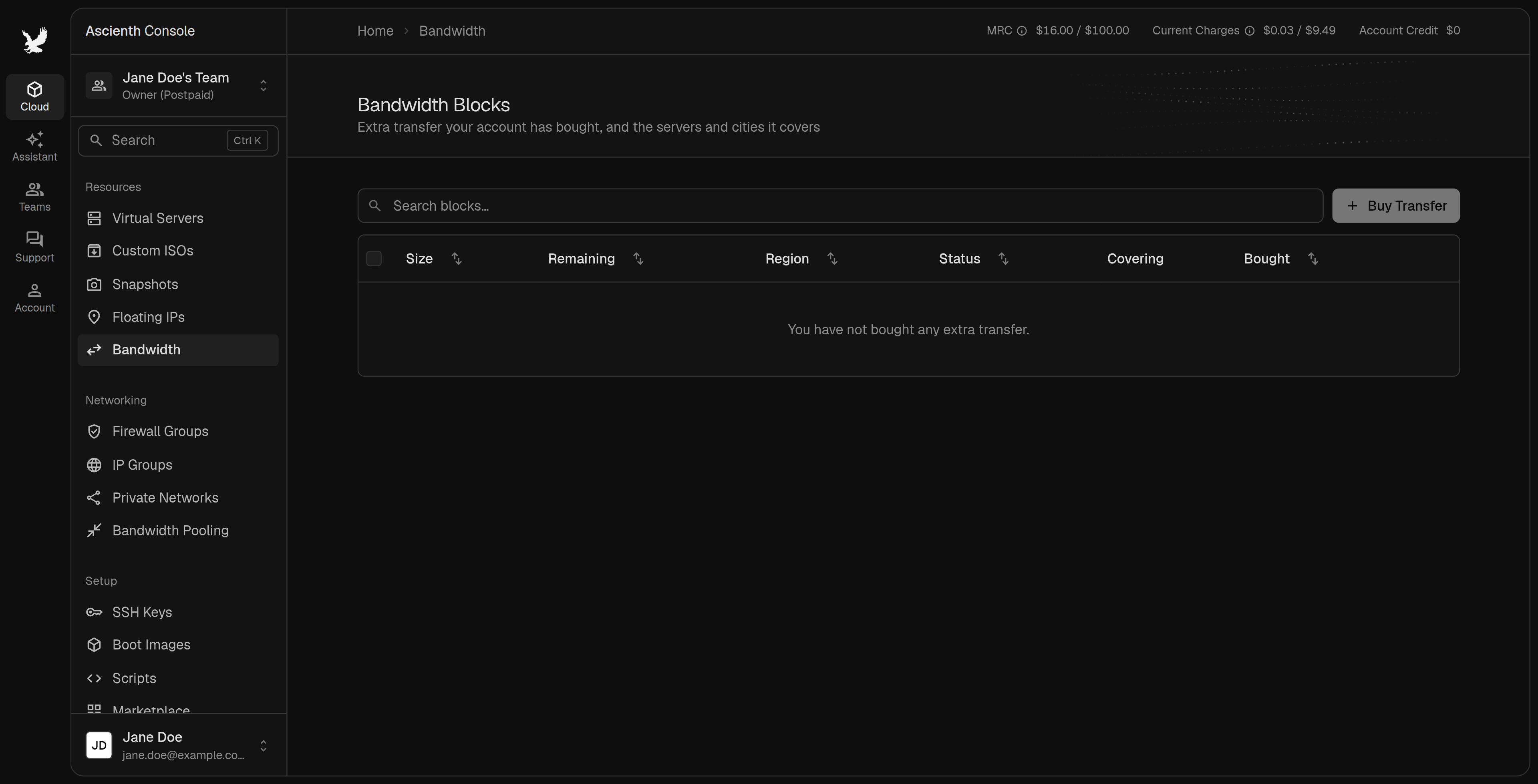
Open "Bandwidth" in the sidebar to see your blocks. Each row shows the block's size, how much is left, its region, its status and what it is covering.
Buying a Block
In a prepaid team, blocks are paid from account credit. In a postpaid team, the block is a one-time charge on the monthly invoice and must fit the owner's credit limit.
Open the buy dialog
On the "Bandwidth" page, click
Buy Transfer.Choose a region and size
Choose the
Regionyour servers are in:United States or Germany, orMalaysia, Singapore, or Japan. Enter how manyTerabytesyou want. The dialog shows the price and the largest block you can buy.For prepaid teams, if account credit does not cover the price, the dialog says how much more you need. Add funds and try again.
Buy
Click
Buy bandwidth. If the price changed since the dialog opened, you are asked to confirm the new price withPay from Credit.Wait for it to become active
The block appears as
Provisioning, then changes toActive. For prepaid purchases,Needs fundsmeans your credit ran short: add funds before the deadline or the purchase expires. Postpaid purchases are charged on the monthly invoice.
Attaching a Block to Servers
Open the menu at the end of the block's row and choose Attach to server. Pick the server in the "Attach Transfer" dialog and click Attach. The server keeps running at full speed once it passes its plan allowance, drawing on the block instead of being throttled. You can attach the same block to several servers.
To stop covering a server, choose Detach from a server, pick the server and click Detach. That server goes back to its own plan allowance straight away, and is throttled again if it is already over it. The block keeps its balance and carries on covering its other servers.
Binding a Block to a City
If pooling is on in a city (see Bandwidth Pooling below), you can add a block's balance to that city's pool. Choose Bind to a city, pick the City and click Bind. Binding takes the block off any servers it was attached to.
To remove it from the pool, choose Take out of followed by the city name, then click Take it out. The block keeps its balance and can be attached to servers or bound to another city. Any server in that city that is already over its allowance is throttled straight away.
Seeing Where a Block Went
Choose Where it went from a block's menu to see how much was drawn from it, one line per server or pool per month.
A block that is fully spent no longer appears on the "Bandwidth" page.
Cancelling a Block
Open the cancel dialog
Open the menu at the end of the block's row and choose
Cancel block.Check the refund
The dialog shows the
Estimated credit refund: the unused part of the block at the price you paid, less any usage settled when you confirm.Confirm
Type
deleteto confirm, then clickCancel block.
The block is detached from every server and pool right away, and unused prepaid transfer is refunded to account credit. For a postpaid block not yet invoiced, the unused amount reduces its monthly charge instead. Servers that are over their plan allowance may be throttled.
You can also cancel a purchase that is still waiting for payment. Nothing is charged for it.
Bandwidth Pooling
With pooling on in a city, all of the team's servers there share one allowance: their plan limits added together, plus the balance of any of the team's blocks bound to that city. A quiet server's unused transfer covers a busy one.
Pooling is set separately for each city and each team. Running out in one pool never affects servers in another city or in your other teams.
Open "Bandwidth Pooling" in the sidebar. Each city is listed with its region, how many of the team's servers are there, the transfer used out of the pool's total, and whether it is Pooled or Not pooled.
Turning Pooling On
Choose the city
On the "Bandwidth Pooling" page, open the menu at the end of the city's row and choose
Start pooling.Check the warning about blocks
If one of the team's blocks covers servers in this city and also servers in another city or team, the dialog lists it. That block stops covering the servers in this city until you bind it to a city. Its balance is not lost.
Confirm
Click
Start pooling. The team's servers in that city share one allowance from now on.
Turning Pooling Off
Open the city's menu and choose Stop pooling. Before you confirm, the dialog shows how the transfer already used in the city will be shared out between the servers, and which servers would be over their own plan afterwards and throttled.
Any blocks bound to the city are detached from it. You can attach them to servers or bind them to another pooled city. Their balance is not lost.
Click Stop pooling to confirm. Each server is measured against its own plan again.
Team Permissions
| Action | Role permission needed |
|---|---|
| See the "Bandwidth" and "Bandwidth Pooling" pages | View networking |
| Attach, detach, bind or take out a block, and turn pooling on or off | Change networking |
| Buy or cancel a block | Make purchases |
The team owner pays for blocks according to the team's prepaid or postpaid billing mode. See Team Members and Roles.
Frequently Asked Questions
Does unused block transfer expire at the end of the month?
No. A block is a balance that carries over until it is spent. Only your servers' plan allowances reset each month.
Why can't I attach a block to my server?
A block can only cover servers in the region it was bought for, and only servers that have a transfer limit. A block with no transfer left cannot be attached either.
Why can't I bind a block to a city?
Pooling must be on in that city first, and the city must be in the block's region. Turn pooling on from the "Bandwidth Pooling" page.
The Buy Transfer button is disabled.
Extra transfer is not on sale at the moment. Open a ticket in the client area if you need more than your plans allow.
My server is slow. Is it throttled?
If it used up its allowance, or its city's pool ran out, it is limited to 1.25 MB/s until its usage resets or more transfer covers it. Attach a block or bind one to the city's pool to lift the limit.
Still stuck? Contact our team
View as Markdown