Private Networks
How to create a private network between your virtual servers in one city, attach and detach servers, and delete the network in the Ascienth console.
Overview
A private network connects your servers in the same city over an isolated network with its own private address range. Each server on the network gets an extra network interface and an address on that range, and can reach the other servers on it directly.
Traffic on a private network is not counted toward your bandwidth quota.
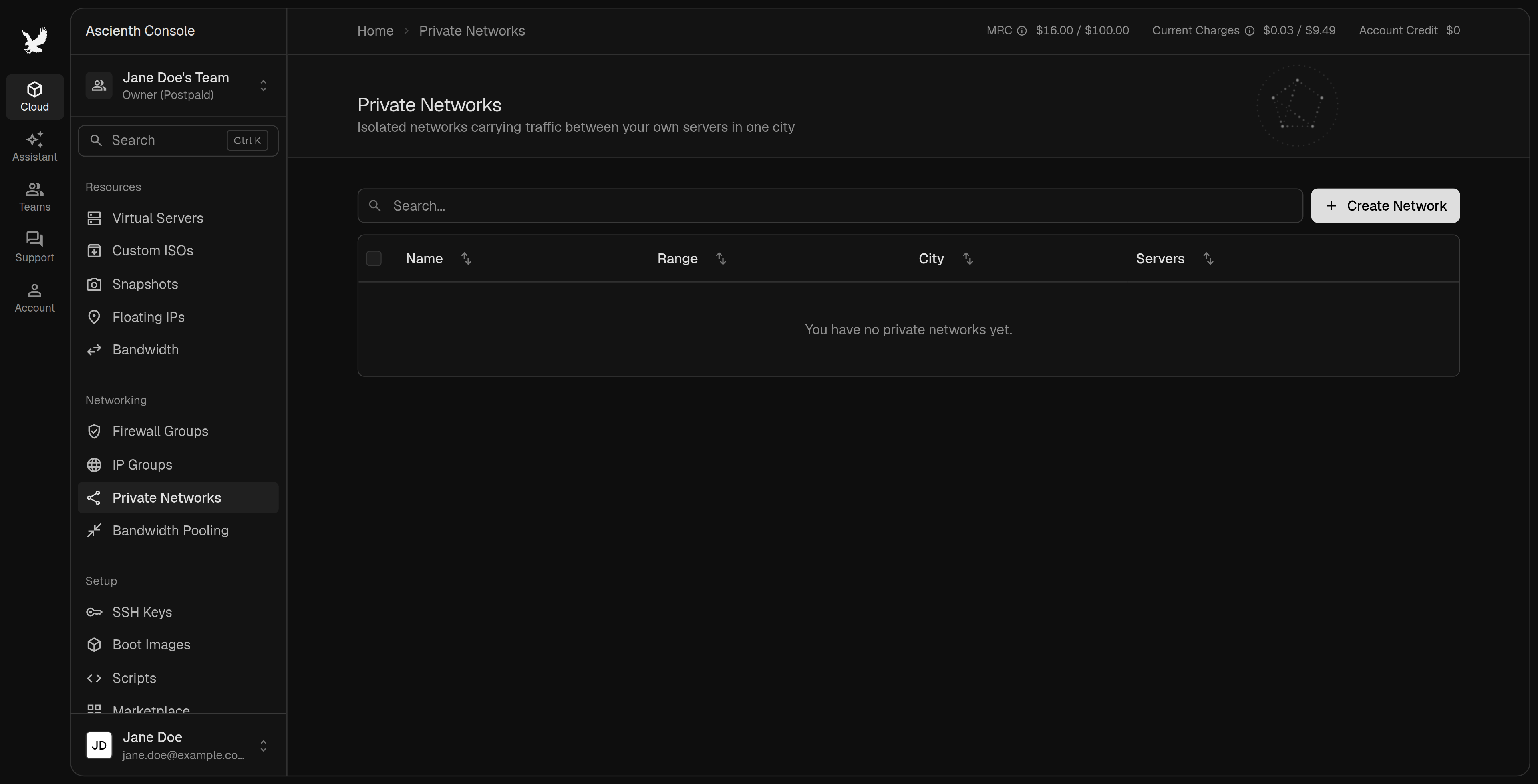
Open the Ascienth console at https://console.advinservers.com and click "Private Networks" under "Networking" in the left sidebar. Each server also has a "Private Network" tab.
Team members need these permissions:
| Permission | What it allows |
|---|---|
View networking |
See private networks and their servers. |
Change networking |
Create networks, rename them, and attach or detach servers. |
Delete networking resources |
Delete a private network. |
Creating a Network
Open the Private Networks page
Click "Private Networks" in the left sidebar, then click
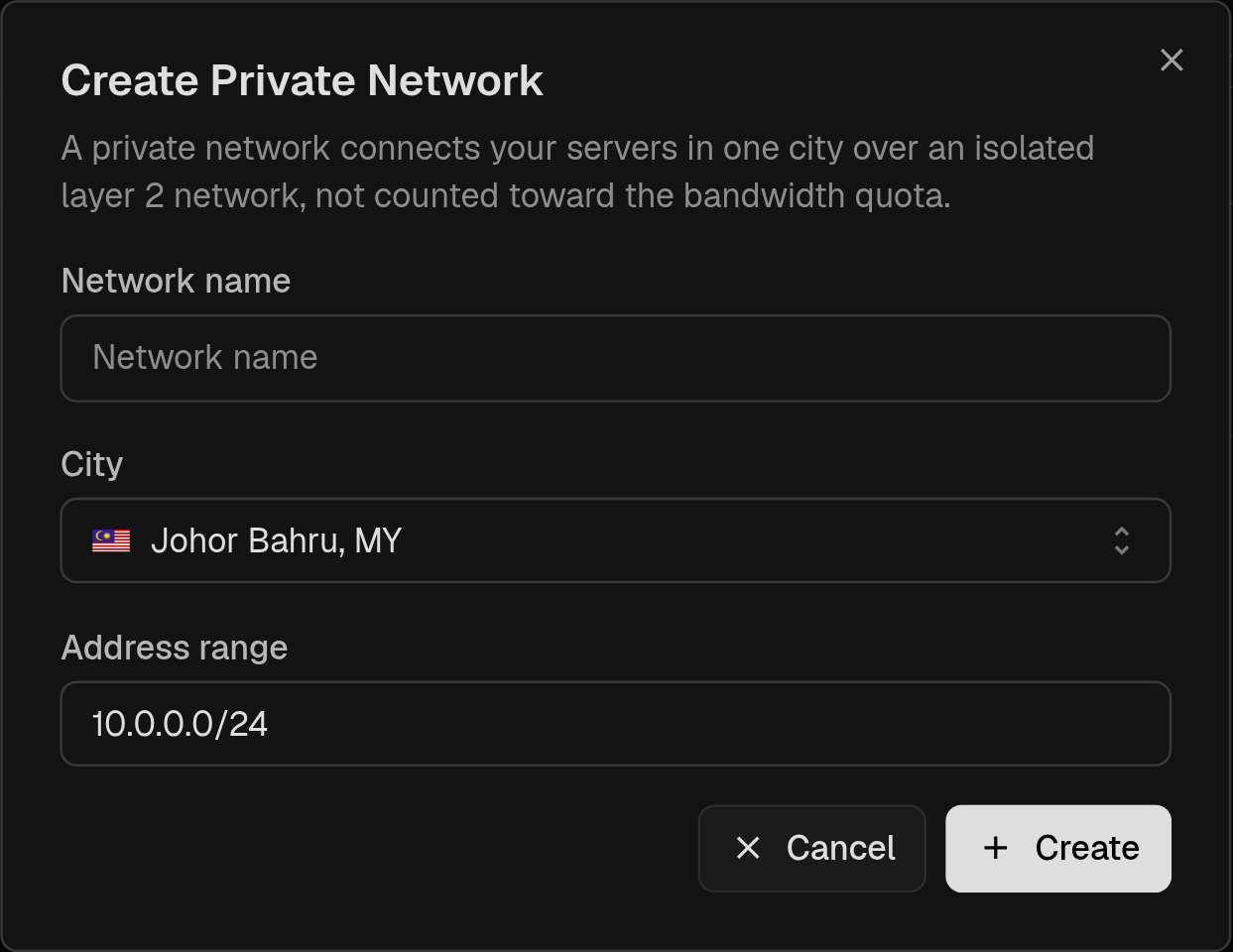
Create Network.Fill in the details
Network name: up to 64 characters. Use letters, digits, spaces, dashes, underscores or dots.City: the city the network is in. Only cities where you have a server are listed.Address range: the private range the network uses, in CIDR notation. We fill in a free range for you, which you can change.
Create it
Click
Create. The network appears in the list with itsRange,Cityand number ofServers.
The address range must:
- be inside
10.0.0.0/8,172.16.0.0/12or192.168.0.0/16, - have a prefix between
/8and/30, written with no bits set below the prefix (for example10.20.30.0/24, not10.20.30.5/24), - not overlap another network your team already has in that city.
Adding Servers
You can add a server from the network's page or from the server's own tab.
From the Network's Page
Open the network
Click the network in the list. It opens on the "Servers" tab.
Add a server
Click
Add Serverand choose theServer. Only your servers in the network's city that are not already on it are listed.Choose its address
Under
Address, pickAssign one automatically, orChoose an addressand enter anIP addresson the network's range. ClickAdd.
From the Server's Private Network Tab
Open the tab
Click your server, then the "Private Network" tab, and click
Add Private Network.Pick or create a network
Choose a network from the
Networkmenu. UnderIP Address, pickAutomaticorManualand enter the address you want.To start a new network instead, choose
Create a new networkand enter aNetwork name. We pick a free address range for it in the server's city and add the server to it.Confirm
Click
Add.
The server's status shows Attaching while it is being added, then Attached.
A server can be on several private networks at once. The address you choose must be on the network's range, and no two servers on a network can share an address. The first and last addresses of the range cannot be used.
Detaching a Server
- From the network's "Servers" tab, click the menu at the end of the server's row and choose
Detach from network. - From the server's "Private Network" tab, click the menu at the end of the network's row and choose
Detach.
Confirm in the dialog. The server loses its interface on that network, and its address goes back to the range. Detaching runs in the background, and the interface disappears from the server on its next reboot. The network and its other servers are not affected.
Renaming a Network
Open the network and click the "Settings" tab. Change the Name and click Save. The address range and city cannot be changed after the network is created.
Deleting a Network
Open the network and click the "Delete" tab, then Delete. You can also choose Delete from the menu on the "Private Networks" page or on a server's "Private Network" tab. Type the network's name to confirm.
Frequently Asked Questions
Does the firewall filter traffic on a private network?
No. The console firewall does not filter private network traffic. Use a firewall inside your servers if you need to restrict it.
Can I connect servers in different cities?
No. A private network only spans one city. A server can only join a network in its own city.
Why is my server not listed when I add a server?
Only your servers in the network's city and in the same team are listed, and only if they are not already on the network.
I added my server, but I cannot see the new interface.
The interface is added on the server's next reboot. Reboot it from the console and check again.
Still stuck? Contact our team
View as Markdown