SSH Keys
How to save SSH public keys in the Ascienth console and add them to a server when you order or reinstall it.
Overview
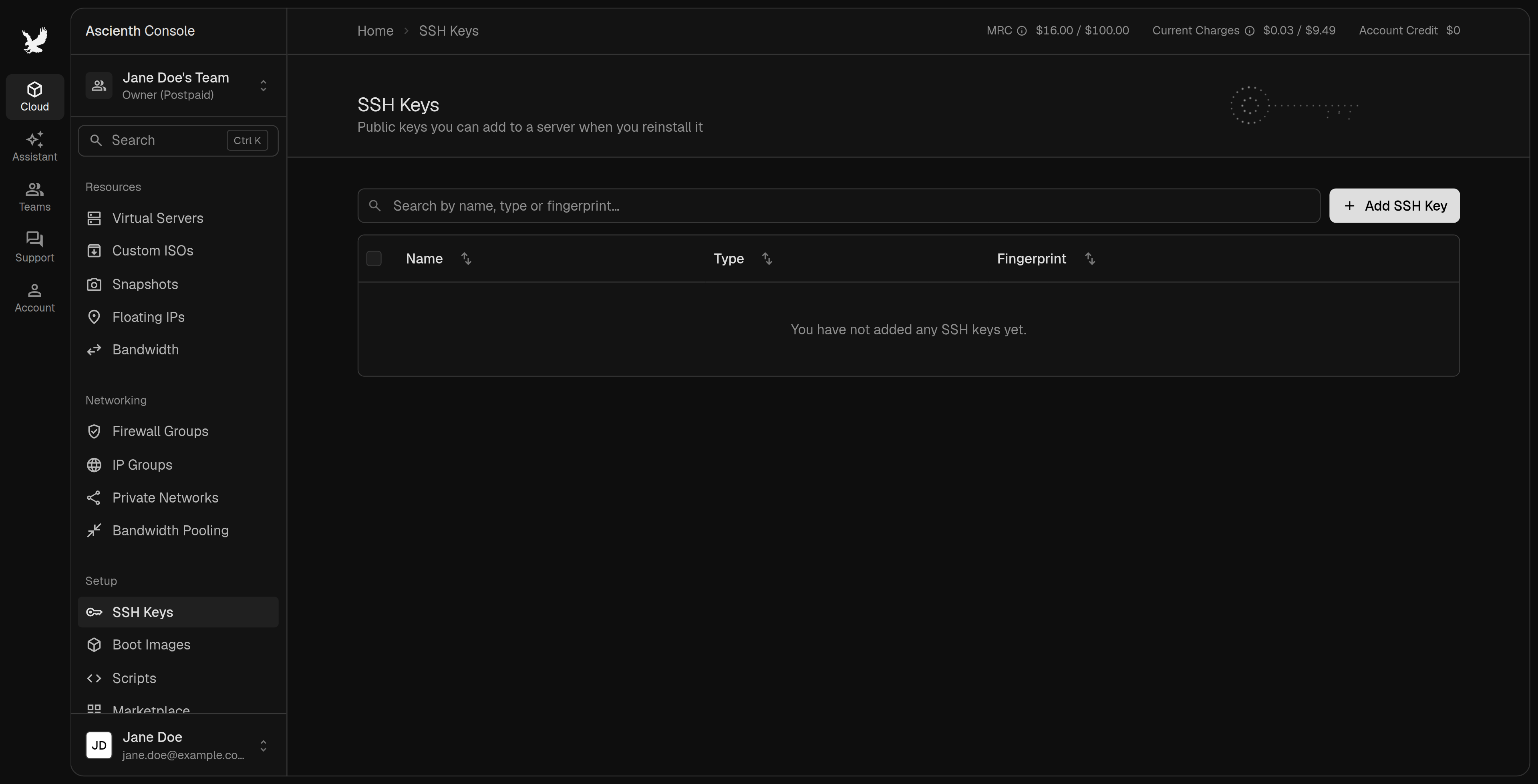
The "SSH Keys" page stores the public keys you use to log in to your servers. A saved key does nothing on its own. It is added to a server only when you pick it while ordering a new server or reinstalling an existing one.
Open the Ascienth console at https://console.advinservers.com and click "SSH Keys" under "Setup" in the left sidebar.
Keys are saved in the team you are working in. Each team has its own list, so switch to the right team before you add a key.
Supported Keys
Paste the contents of your .pub file, for example ssh-ed25519 AAAA... you@laptop. We accept:
| Key type | Accepted |
|---|---|
Ed25519 (ssh-ed25519) |
Yes |
ECDSA (ecdsa-sha2-nistp256 and similar) |
Yes |
RSA (ssh-rsa) |
Yes, 1024 bits or longer |
DSA (ssh-dss) |
No |
The console also tidies up common copy-and-paste problems for you:
- A key that was split across several lines is joined back into one line.
- A key pasted without its type at the start has the type added back.
- A public key in PEM format (
BEGIN PUBLIC KEY) or exported from PuTTY is converted to the one-line OpenSSH format.
If the key still cannot be read, you will see: That does not look like an SSH public key. Paste the contents of a .pub file, for example "ssh-ed25519 AAAA… you@laptop".
Adding a Key
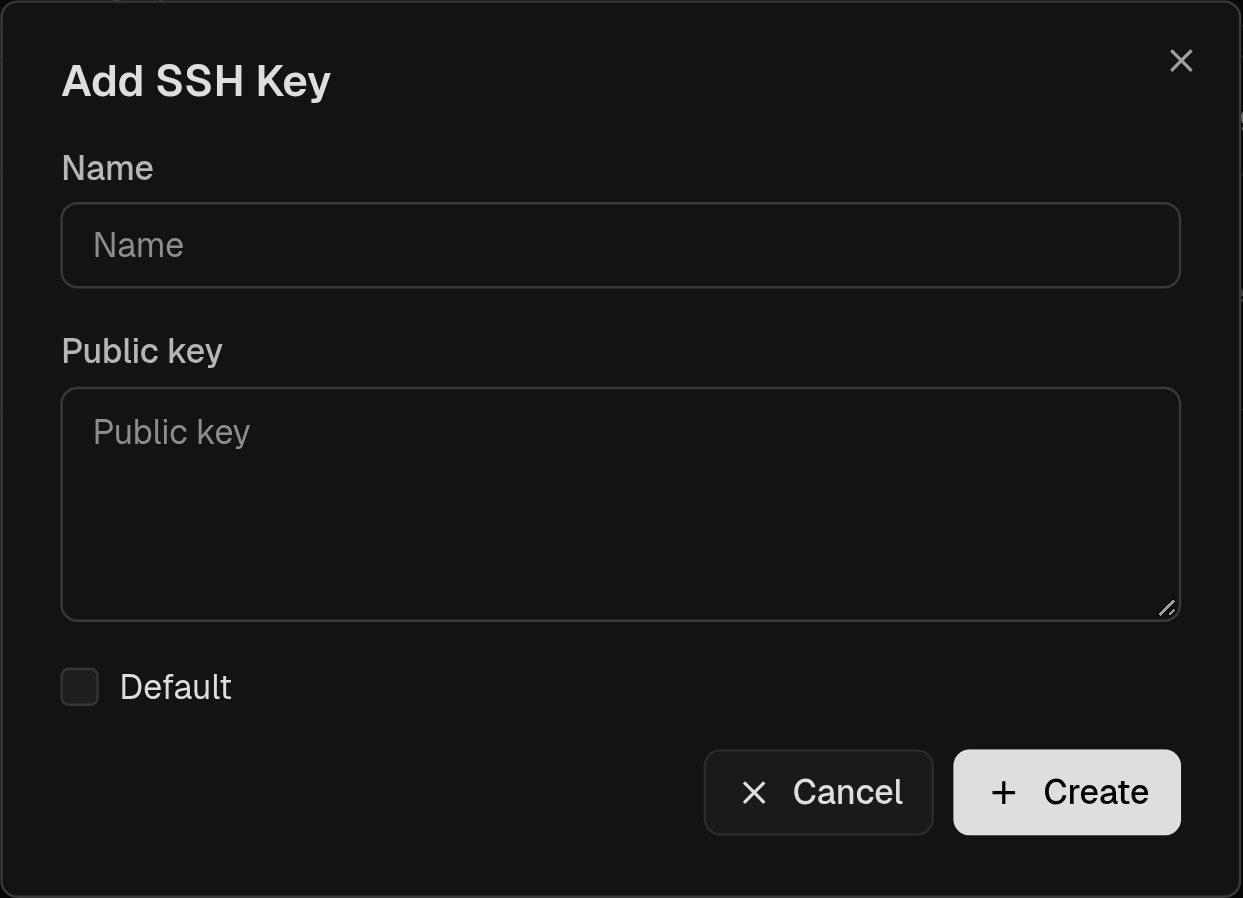
Open the form
On the "SSH Keys" page, click
Add SSH Key.Fill in the key
Name: a label for the key, up to 64 characters. Each name can only be used once in your account.Public key: the full public key, up to 4096 characters.Default: tick this to have the key selected for you on the order and reinstall forms. You can mark more than one key as default.
Save
Click
Create. The key appears in the list with its type and itsSHA256:fingerprint, which you can compare againstssh-keygen -lf <keyfile>on your computer.
You can also add a key straight from the order or reinstall form with Create SSH Key. The new key is selected for you.
Editing a Key
Click the menu at the end of the key's row and choose Edit. You can change the name, replace the key itself, and turn Default on or off. Click Save when you are done.
Deleting a Key
Click the menu at the end of the key's row and choose Delete. To confirm, type the key's name and click Delete.
Where Keys Are Used
Saved keys appear as tiles in the "SSH Keys" section of two forms:
- Ordering a server, on the "Order a Server" page. Keys marked
Defaultare selected for you. - Reinstalling a server, on the server's "Reinstall" tab. Keys marked
Defaultare selected for you. If you have no default keys, all of your keys are selected. See Server Reinstallation.
Click a tile to select or clear it. You can add up to 25 keys to one server.
When a server is built with at least one SSH key, password login over SSH may be turned off on the new server, so sign in with your key. Your root password still works on the server's console.
Team Permissions
The team owner can always manage keys. Members need these permissions in their role:
| Permission | Allows |
|---|---|
View SSH keys |
See the keys saved in the team. |
Manage SSH keys |
Add and edit keys. |
Delete SSH keys |
Delete a saved key. |
If the team owner has more than one team, they can also choose Move to team from a key's menu to move it to another of their teams. See Team Members and Roles.
Frequently Asked Questions
I added a key but cannot log in to my existing server.
Saved keys are only added when a server is ordered or reinstalled. For a server that is already running, add the key to ~/.ssh/authorized_keys on the server yourself.
Can I save the same key twice?
Yes, as long as each copy has a different name. This can help if you want one entry per machine the key belongs to.
Why was my RSA key rejected?
RSA keys shorter than 1024 bits are refused because the server cannot use them. Generate a new key, for example with ssh-keygen -t ed25519.
Still stuck? Contact our team
View as Markdown