Manual Windows Installation
Install Windows from an ISO and load the VirtIO storage and network drivers.
Overview
Use this method when the Windows image you need is not offered on "Reinstall". You need a Windows installation ISO, the VirtIO driver ISO and a valid Windows license. Check that your plan meets the Windows version requirements.
Prepare the images
Download a Windows ISO from Microsoft and obtain the VirtIO driver ISO from its official distribution. Add both direct download links on "Custom ISOs" and wait until both downloads complete.
See ISO Mounting for downloading and mounting media.
Boot the Windows installer
Mount the Windows ISO
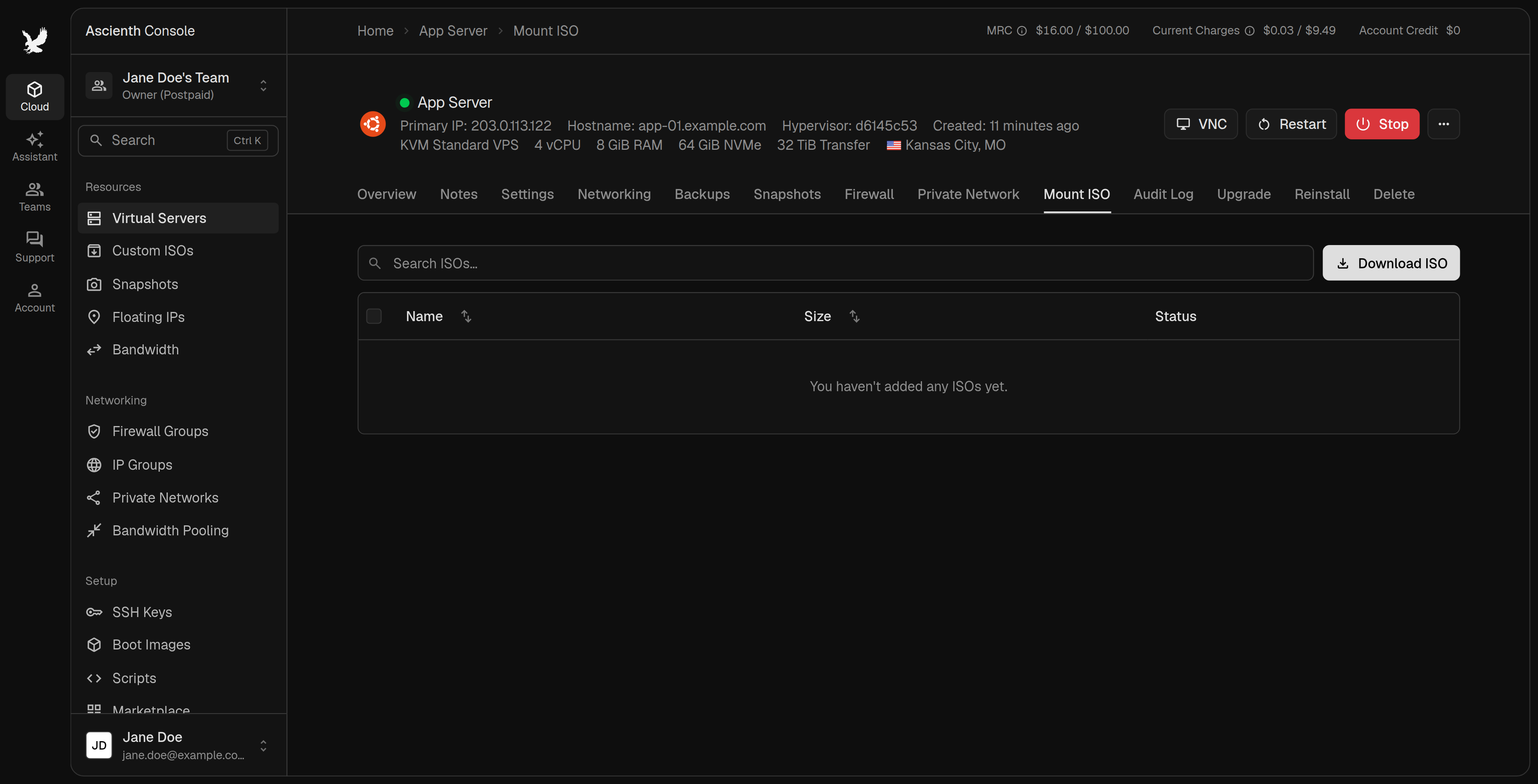
Open the server's "Mount ISO" tab and mount the Windows installer. If multiple drives are offered, put the driver ISO in another drive.
Check firmware and boot order
Use "Settings" > "Hardware" to choose firmware compatible with your Windows version. Use UEFI and TPM where required, such as Windows 11. Put the installer first under "Boot Order".
Start setup
Stop and start the server, open
VNC, and press a key to boot from the ISO if prompted. Choose the language and keyboard, start installation, select the edition you are licensed for and accept its terms.
Load the storage driver
Choose a custom installation. If no disk appears, click Load driver and browse the VirtIO ISO. Select the storage driver matching the server's virtual controller and your Windows version. VirtIO SCSI commonly uses the vioscsi directory.
If only one ISO drive is available, swap the Windows ISO for the VirtIO ISO while loading the driver. Put the Windows ISO back before continuing installation.
Select the target disk and continue. Delete existing partitions only when you intend to erase them. Windows copies files and restarts several times; let it boot from disk after the first stage.
Finish Windows setup
Set the Administrator password. Once at the desktop, open the VirtIO ISO and install its remaining drivers and guest tools, including the network driver and guest agent.
Configure the network adapter using the exact IP address, prefix or netmask, and gateway shown on the server's "Networking" page. Check connectivity before relying on Remote Desktop. If needed, use VNC to fix networking without a network connection to the guest.
Unmount both ISOs when finished and put the server disk first in "Boot Order". Activate Windows with your license. See Windows for evaluation licensing information.
Still stuck? Contact our team
View as Markdown